

Documents and templates
Use Document Templates
Generate a personalized document for every envelope from one DOCX template, with merge fields, conditionals, repeating table rows and signature placeholders.
Document templates let you create a single DOCX file with merge fields and conditionals, then generate a personalized document for each envelope you send. Instead of editing files manually before each send, you provide the data and SignatureAPI handles the merge.
For this example, we will create an envelope with:
- One DOCX template containing merge fields for party names and a date, and one conditional.
- Two signature places positioned with
[[place_key]]placeholders. - Two recipients (signers): a service provider and a client.
Create a Template
Create a DOCX file in Microsoft Word and embed merge fields using double curly braces: {{key}}. When SignatureAPI processes the envelope, it replaces each field with the matching value from the data property you provide.
A simple template might look like this:
This Dummy Agreement is made for illustrative purposes only on {{date}}, by and between {{serviceProvider.name}} (hereinafter referred to as “Service Provider”) and {{client.name}} (hereinafter referred to as “Client”).
You can reference nested objects using dot notation: {{serviceProvider.name}} reads the name key inside the serviceProvider object.
To mark where signatures should appear, add [[place_key]] placeholders directly in the document. These work the same way as in PDF documents. In this example, the template contains the placeholders [[provider_signs_here]] and [[client_signs_here]].
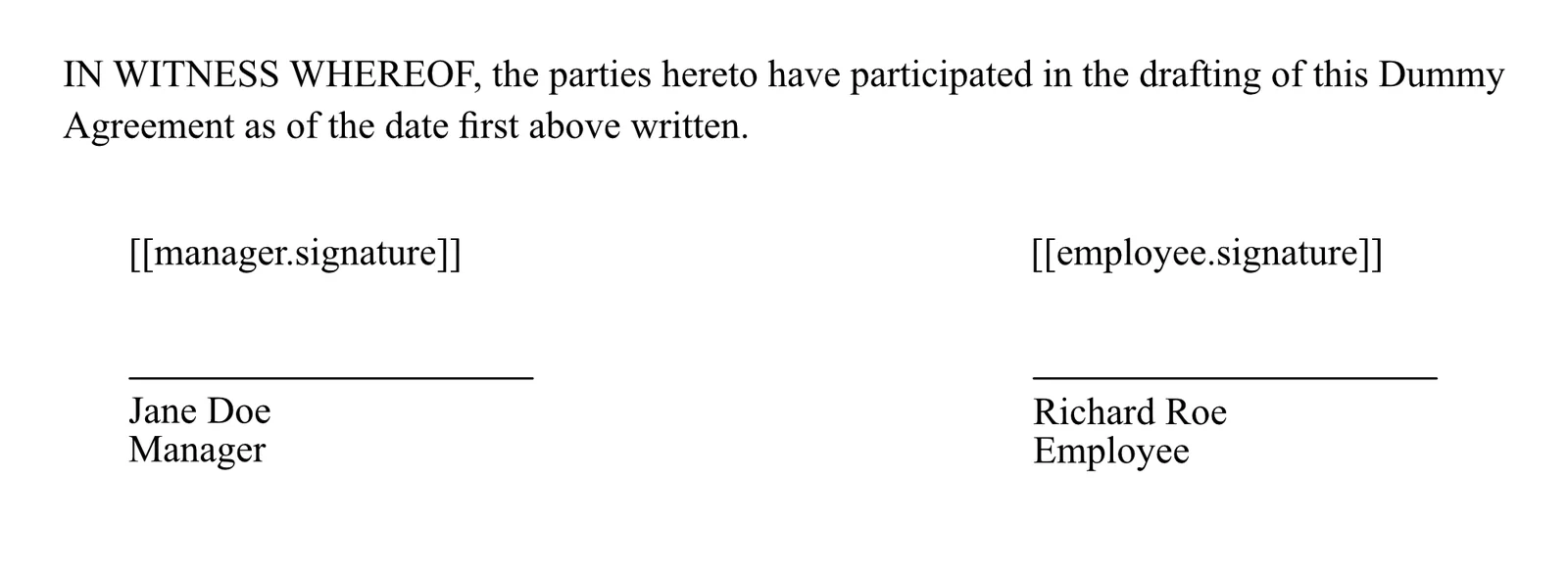
Templates must be DOCX format. PDF files are not supported for template merging. If you get a cannot-parse-document error, open the file in Microsoft Word and save it again before uploading.
Example template
Download the DOCX template used in this example.
Create the Envelope
When creating the envelope, set format to docx on the document object and provide merge values in the data property. Also include the places array with an entry for each [[place_key]] placeholder in the template.
POST /v1/envelopes HTTP/1.1
Host: api.signatureapi.com
X-API-Key: YOUR_API_KEY
Content-Type: application/json

{
  "title": "Dummy Agreement",
  "message": "Please review the agreement and provide your signature.",
  "documents": [
    {
      "url": "https://pub-e5051420e98a4fdfb3fd42a62fbf06fa.r2.dev/dummy.docx",
      "format": "docx",
      "data": {
        "date": "November 2nd, 2026",
        "showAlert": true,
        "serviceProvider": {
          "name": "John Smith",
          "organization": "Acme Corp"
        },
        "client": {
          "name": "Jane Doe",
          "organization": "Northwind Studio"
        }
      },
      "places": [
        {
          "key": "provider_signs_here",
          "type": "signature",
          "recipient_key": "service_provider"
        },
        {
          "key": "client_signs_here",
          "type": "signature",
          "recipient_key": "client"
        }
      ]
    }
  ],
  "recipients": [
    {
      "type": "signer",
      "key": "service_provider",
      "name": "John Smith",
      "email": "john.smith@example.com"
    },
    {
      "type": "signer",
      "key": "client",
      "name": "Jane Doe",
      "email": "jane.doe@example.com"
    }
  ]
}
Key properties on the document object:
format: Must bedocxwhen using a template.data: An object whose keys match the merge fields in the template. Nested objects are supported. Every field and condition the template uses must have a value: the example template has an{{if showAlert}}block, sodataincludesshowAlert. A missing value fails the create request with a422:cannot-populate-templatefor a field,template-errorfor a condition.places: An array of place objects. Thekeyon each place must match the[[place_key]]placeholder in the template.
Result
SignatureAPI merges the template with the provided data and produces a final document. The merge fields are replaced with their values, and the signature places are rendered at the positions marked by the placeholders.
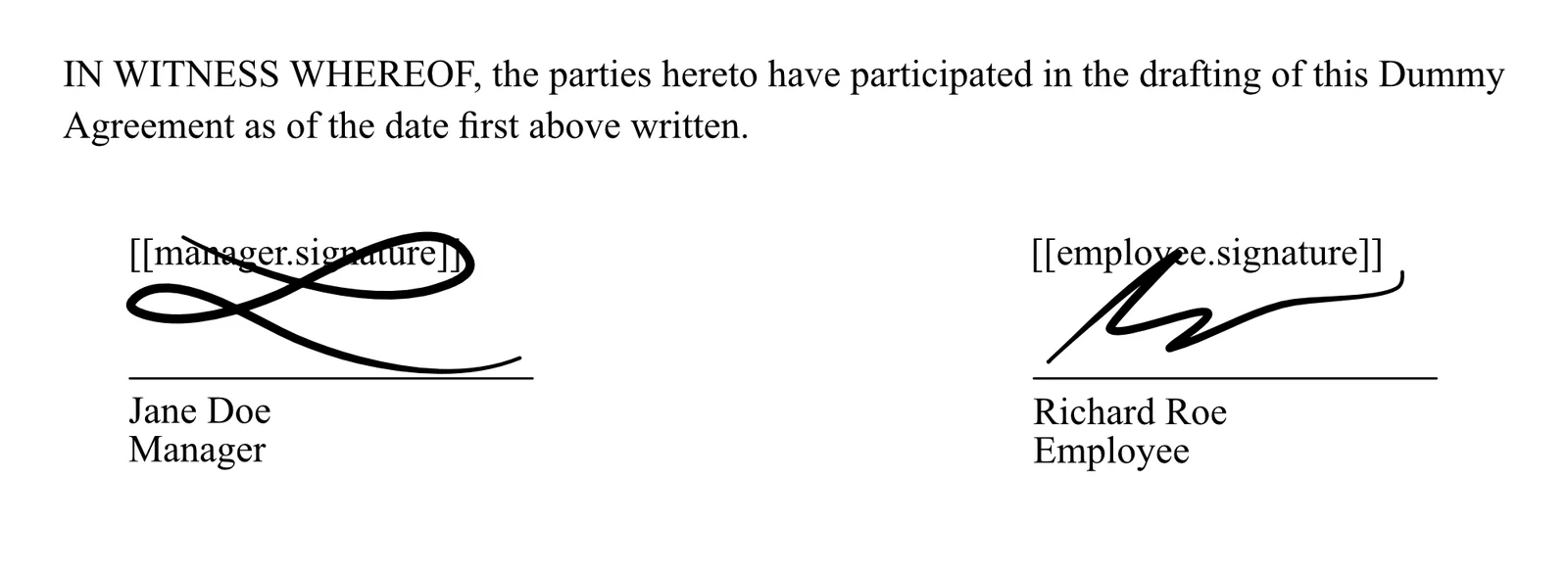
Each recipient receives an email with a link to sign their respective place in the document.
Conditionals
Use conditionals to show or hide sections of the document based on your data. This is useful for clauses that apply only in certain situations, such as a mediation clause that is included only when both parties agree.
If
Use {{if condition}} and {{endif}} to include a block only when the condition is true.
Template:
Please read before proceeding.
{{if showAlert}}
Important: This document is for demonstration purposes only and is not legally binding.
{{endif}}
By signing, you acknowledge the terms above.
Data:
{
  "showAlert": true
}
With "showAlert": true, the alert paragraph appears. With "showAlert": false, it is omitted entirely.
If-Else
Use {{if condition}}, {{else}}, and {{endif}} to display one of two blocks depending on the value of a condition.
Template:
{{if mediation}}
Any dispute shall be resolved by mediation, with each party bearing its own costs.
{{else}}
Any dispute shall be settled by arbitration, and the arbitrator’s decision is final.
{{endif}}
With "mediation": true:
Any dispute shall be resolved by mediation, with each party bearing its own costs.
With "mediation": false:
Any dispute shall be settled by arbitration, and the arbitrator’s decision is final.
Repeating lists
If your data has an array of items, you can repeat a section of the document once per item. The classic example is a table where each row is one item.
Suppose the document’s data carries a list of events next to an ordinary field:
{
  "date": "November 2nd, 2026",
  "events": [
    { "name": "Opening Reception", "date": "Mar 12", "guests": "120" },
    { "name": "Closing Dinner", "date": "Mar 14", "guests": "80" }
  ]
}
In Word, build a table with a header row and a single data row. In the data row, write the fields with the array’s name as part of the path:
| Event | Date | Guests |
|---|---|---|
{{events.name}} | {{events.date}} | {{events.guests}} |
The data row repeats once per item. The header stays single because it doesn’t reference the array. Fields outside the table, such as {{date}}, keep their plain path.
This simple pattern works when the array appears in one place only: the data row of one table, or one repeating paragraph. For several repeating regions in one document, the template needs a root wrapper ({{#data}} … {{/data}}) and range tags around each region. Inside the wrapper, every field path starts with data., including fields outside any list: {{data.date}}, {{data.events.name}}. See Several repeating regions in one document, or split the content into one document per list, as the reference recommends.
Try It
Try this example in Postman (“Create an envelope with a docx template”) using your test API key to create a free, non-binding test envelope. Test envelopes don’t send emails, but you can review them in the Dashboard.
Keep Learning
- Learn more about document template syntax, including all supported field and conditional options.
- Explore how to position signatures using placeholders or fixed coordinates.
- Learn about other types of places, such as initials, text inputs, or completion dates.