

How-to guides
Filter Triggers by Envelope Topic
Run a Power Automate flow only for the envelopes you care about by tagging envelopes with topics and setting the same topic on the trigger.
Overview
Sometimes you only want to trigger a flow for specific envelopes, not every envelope in your SignatureAPI account. If every department’s flow runs on every completed envelope, each team gets documents that aren’t theirs.
Topics fix this. A topic is a label you put on an envelope when you create it. A trigger with a value in Topics runs only for envelopes that have that topic, so each department’s flow sees only its own envelopes.
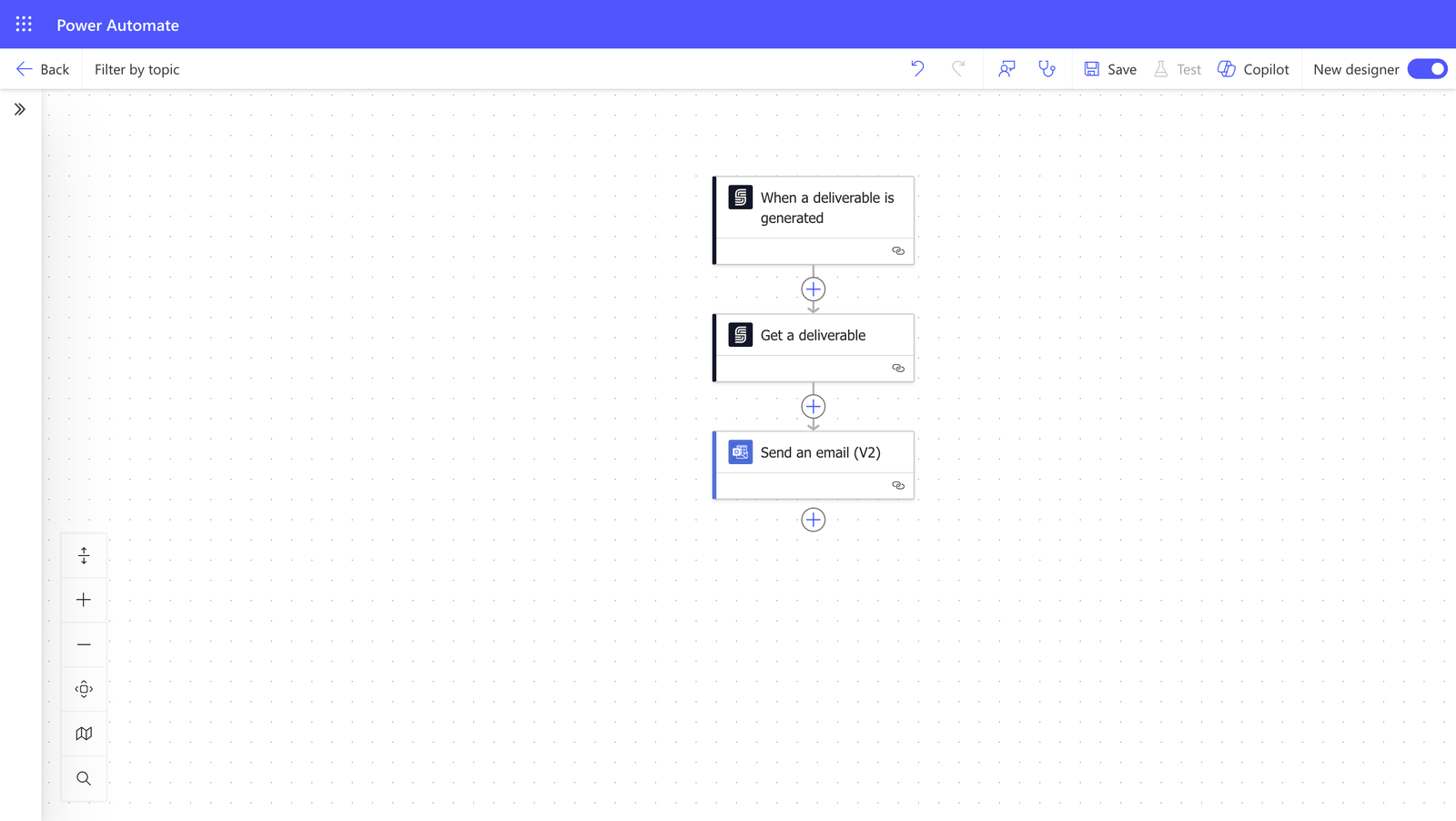
In this example, the flow runs only for envelopes created by the sales department, which use the topic sales_department. When the signed document is ready, the flow emails it to the sales team.
Requirements
- Power Automate, with a connection to the SignatureAPI connector. See Authentication.
- Outlook (Office 365 Outlook connector), to send the email.
Creating the Envelope
This guide assumes you already have a Power Automate flow that creates envelopes using the Create an envelope action from the SignatureAPI connector.
Make sure that flow sets a topic in the “Envelope Topics” field under Advanced parameters. In this case, use the topic sales_department.
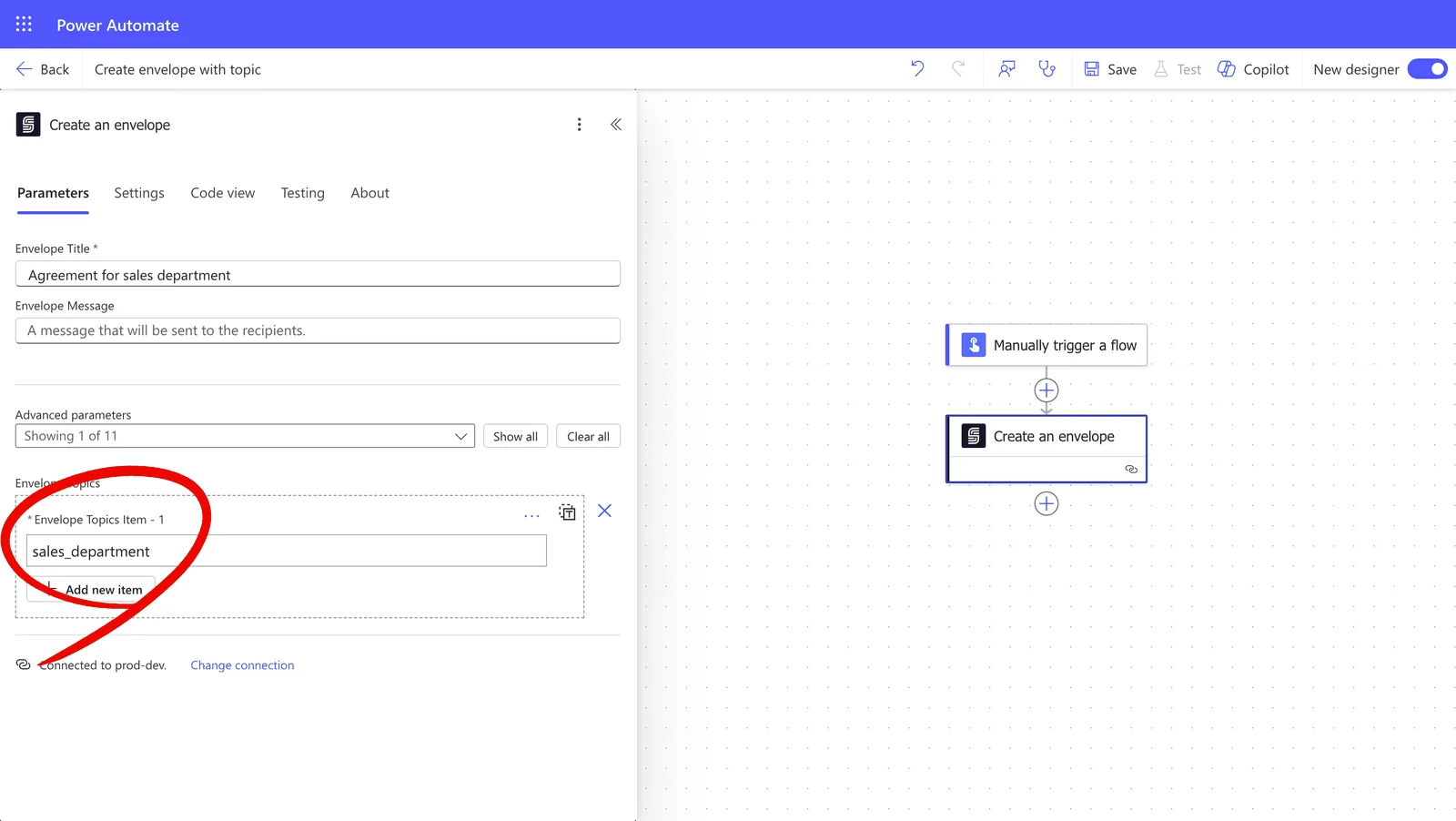
A topic starts with a lowercase letter and contains only lowercase letters, digits and underscores, up to 32 characters. An envelope can have up to 10 topics. See Topics and filters.
Flow Overview
Email sales department deliverables to the sales team
3 steps in Power Automate, from the trigger down.
-
Trigger · SignatureAPI
When a deliverable is generated
- Topics
- Typed value
sales_departmentThe trigger runs only for envelopes that have this topic.
-
Action · SignatureAPI
Get a deliverable
- Deliverable ID
- Dynamic content
Deliverable IDDynamic content from When a deliverable is generated.
-
Action · Office 365 Outlook
Send an email (V2)
- To
- Typed value
sales@acme.example - Subject
- Typed value
Signed sales contract - Attachments Name
- Expression
@{triggerBody()?['data']?['envelope_id']}.pdf - Attachments Content
- Dynamic content
File ContentDynamic content from Get a deliverable.
Trigger a Flow for Selected Envelopes
Create an automated flow that starts when a deliverable is generated.
- Go to Power Automate and select Automated cloud flow.
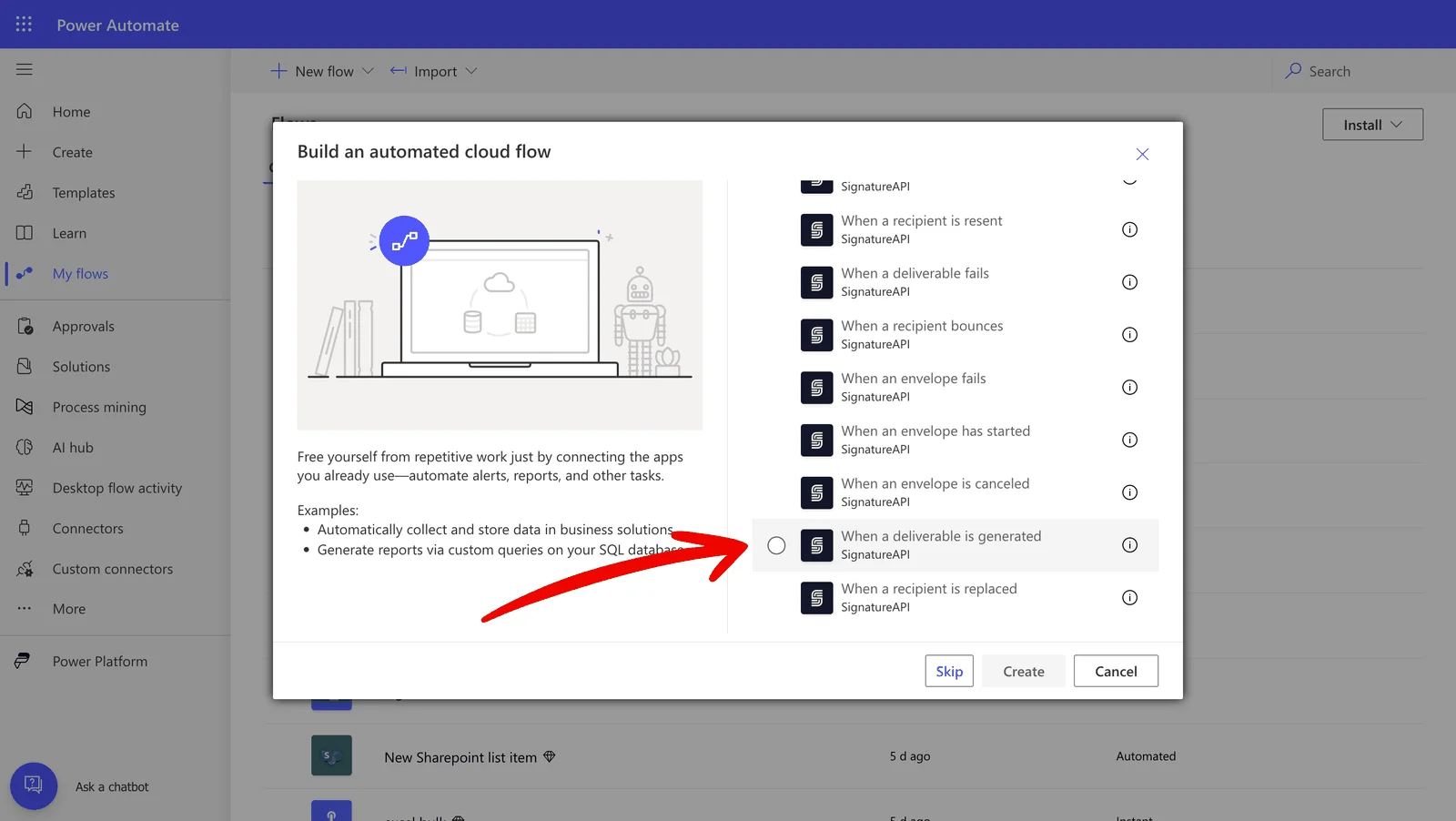
- Name your flow (for example, “Sales department signed documents”) and choose the trigger When a deliverable is generated from the SignatureAPI connector.
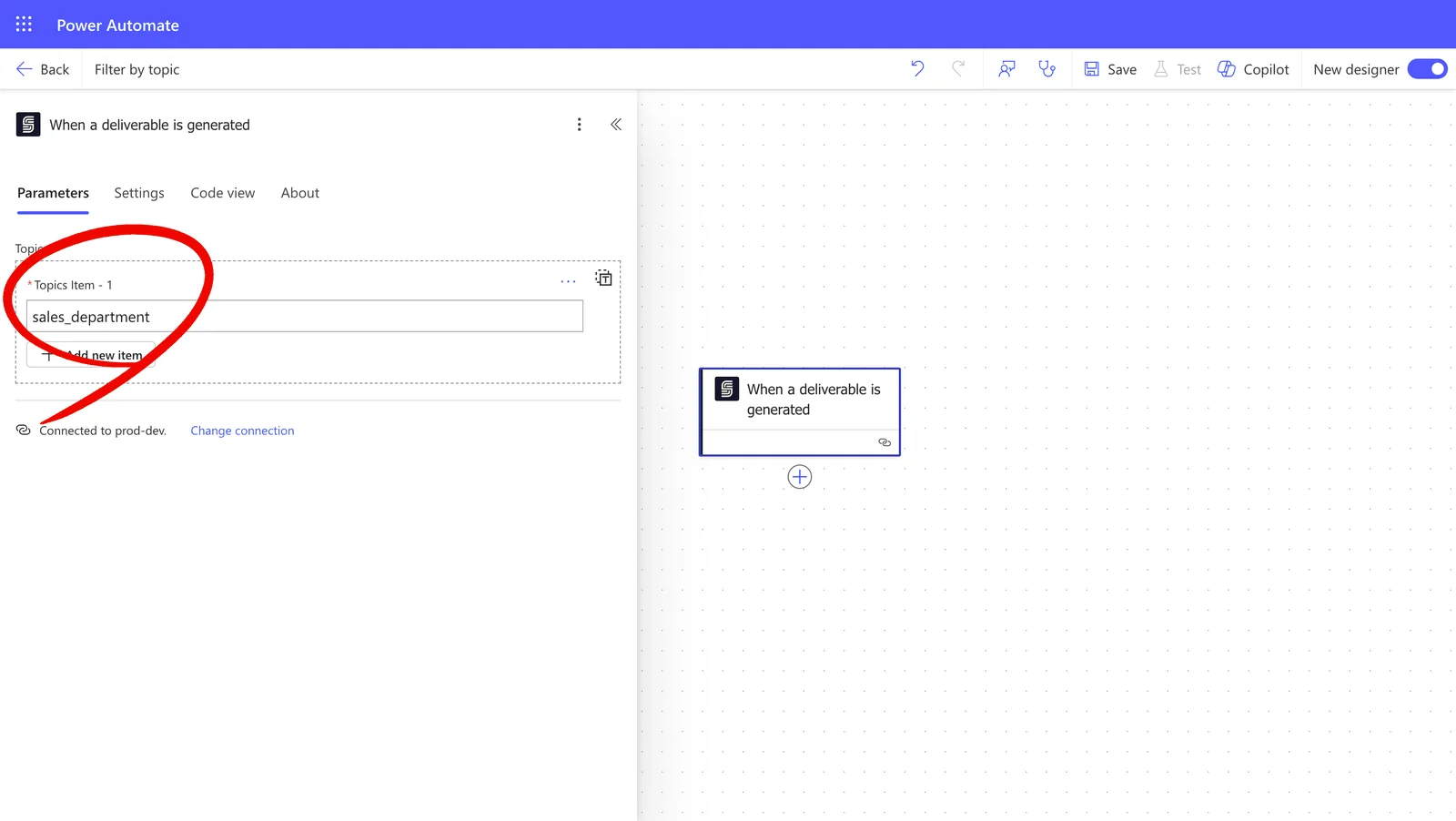
- In the trigger’s Topics field, enter
sales_department. The trigger now fires only for envelopes with this topic.
How the filter matches:
- A trigger with topics runs when the envelope has at least one of them. Add more items to Topics (up to 10) to run one flow for several topics.
- A trigger with no topics runs for every envelope, including envelopes without topics.
- An envelope with no topics never starts a trigger that has topics.
The topic must match exactly what the envelope was created with. This works for every SignatureAPI trigger, not only When a deliverable is generated.
Continue the Flow
Now add the actions that follow the trigger.
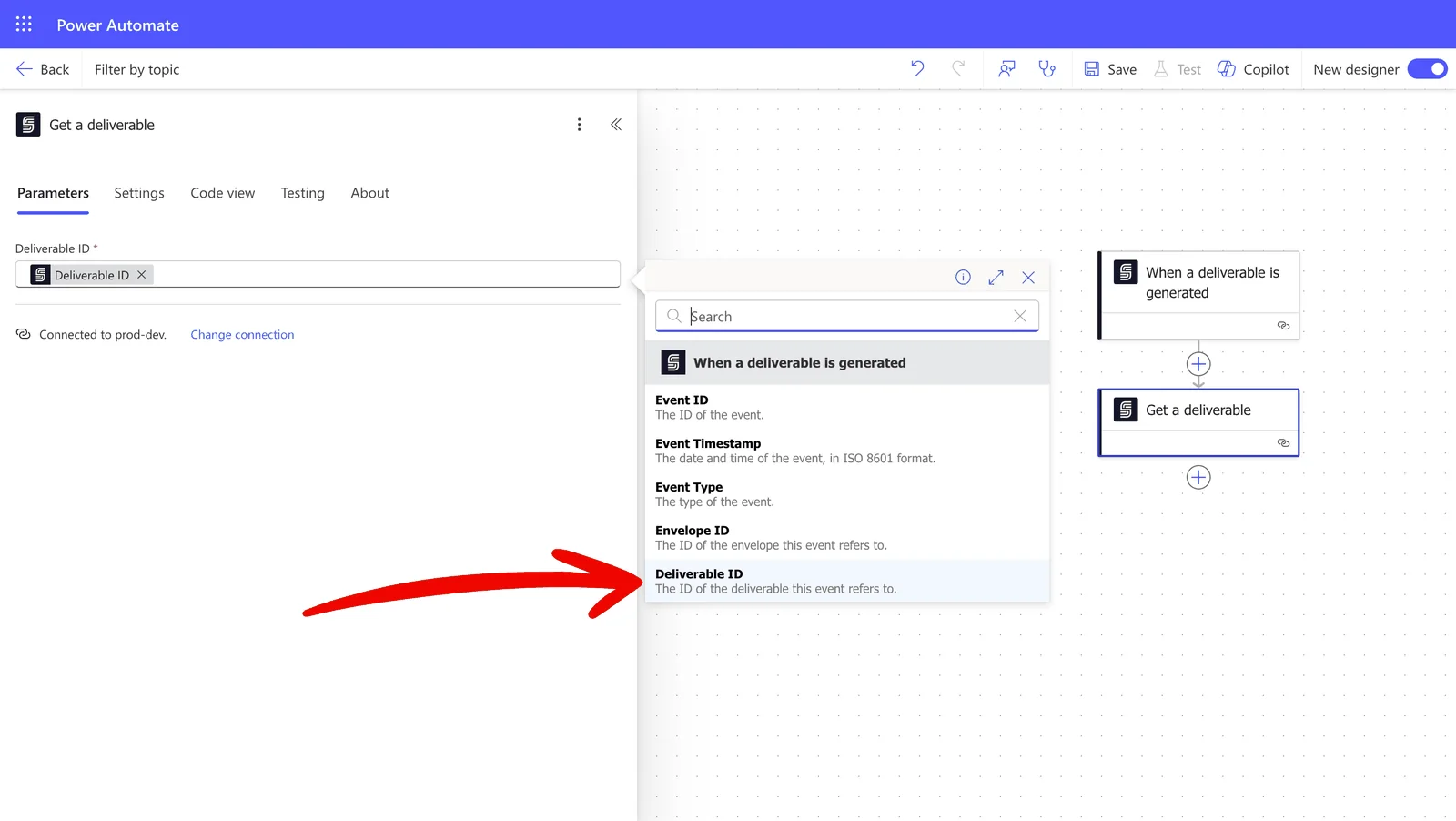
- Add the Get a deliverable action.
- In Deliverable ID, select the trigger’s Deliverable ID from the dynamic content.
Next, send an email to the sales team.
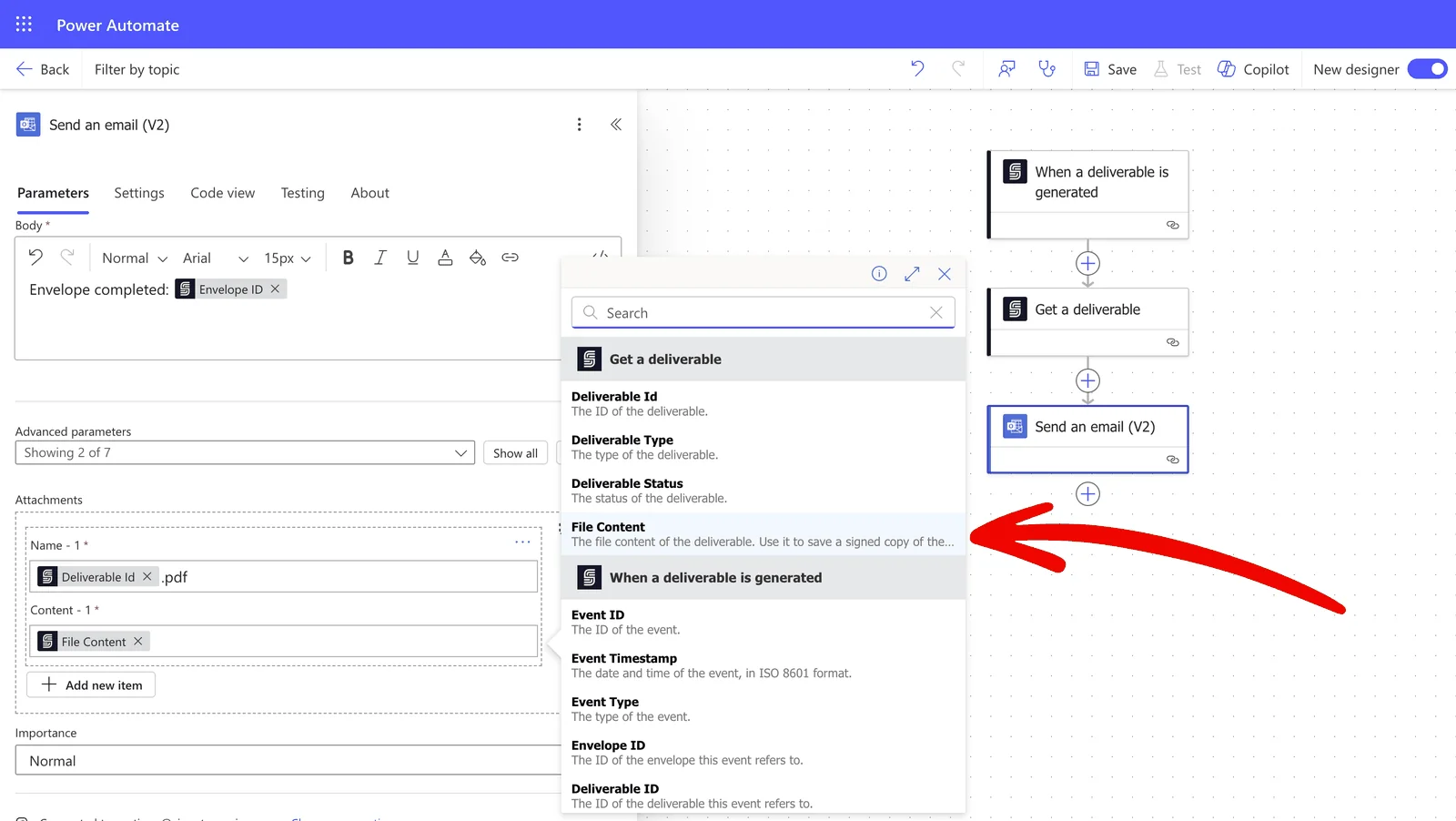
- Add the Send an email (V2) action from the Office 365 Outlook connector.
- In To, enter the team’s address.
- Fill in Subject and Body.
- Under Attachments, attach the signed file: set the content to the File Content from Get a deliverable, and give it a name that ends in
.pdf. This example uses the envelope ID as the file name.
Result
This flow runs only when a deliverable is generated for an envelope with the topic sales_department. It gets the signed document as a PDF and emails it to the sales team.
To route another department, copy the flow, change the topic in the trigger (for example legal_department), and change the To address.
Test Your Automation
Test the full workflow:
- Save your Power Automate flow and make sure it is turned on.
- Create a new envelope with the topic
sales_department, and complete it. - Check that the email arrives with the signed PDF attached, and that the run shows Succeeded in the flow’s run history.
- Create and complete an envelope without the topic, and check that the flow does not run.
If the flow doesn’t run for the tagged envelope, compare the topic on the envelope with the one on the trigger, and check that the SignatureAPI connection uses the same API key mode (test or live) as the flow that created the envelope.
Keep Learning
- Learn more about Topics and Filters
- Read about the When a deliverable is generated trigger