
Dashboard Sections
Upload Permanent Files
Upload and manage permanent files for use as document sources in envelopes.
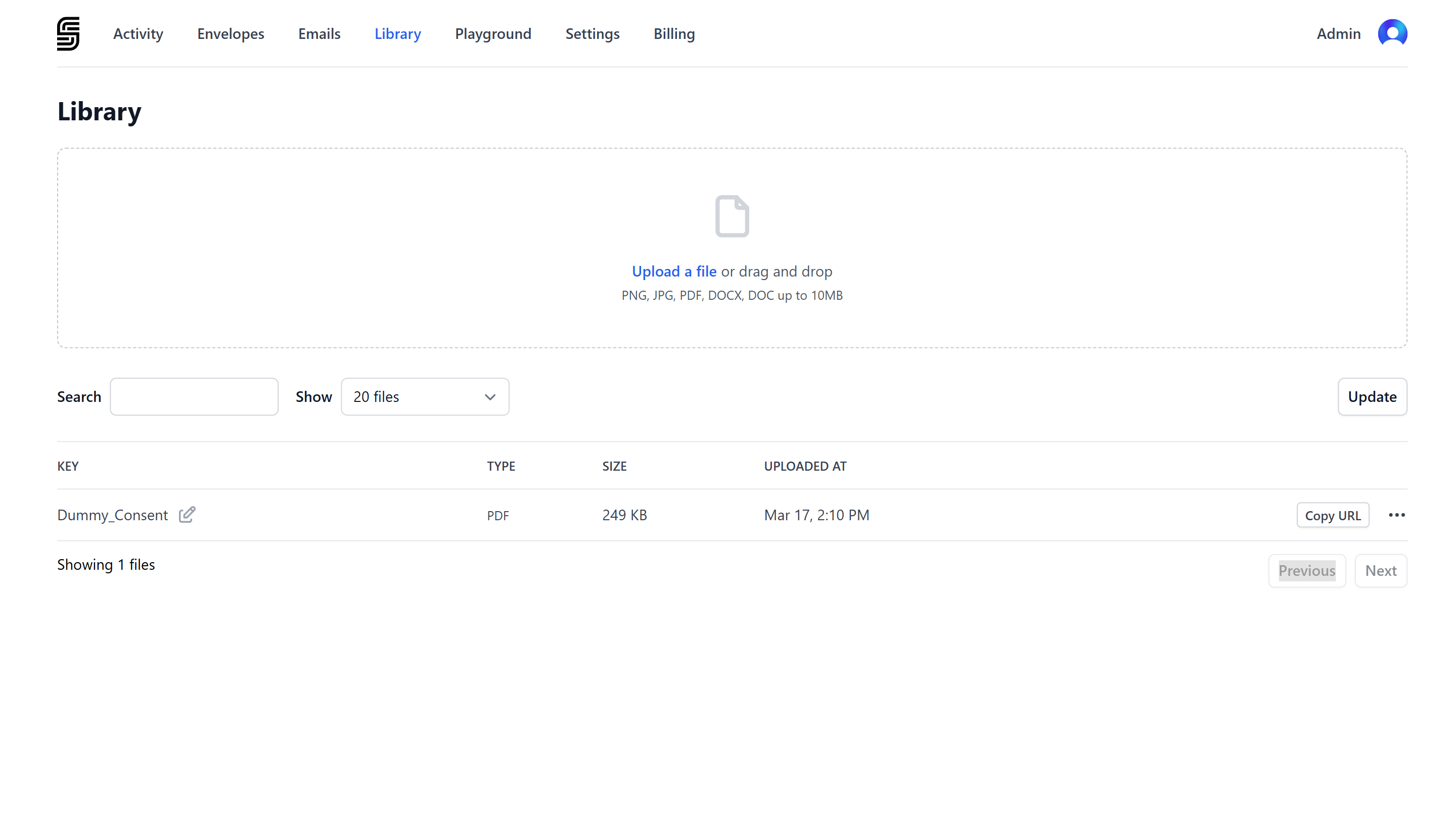
The Library stores files permanently in your SignatureAPI account. Unlike API uploads which expire after 24 hours, Library files are stored indefinitely and can be reused across multiple envelopes.
The Library supports two types of files:
- Documents (PDF, DOCX) — use as document sources in envelopes. Upload contracts, agreements, and other documents you send repeatedly.
- Images (PNG, JPG) — use as logos for envelope branding. Only images uploaded to your Library can be used as logos.
To manage your files, go to the Library in the Dashboard.
For technical details on the upload resource, see the Upload API reference.
Uploading a file
Open the Library
Go to the Library in the Dashboard.
Upload the file
Click Upload a file or drag and drop a file into the upload area. Supported formats:
| Format | Max size |
|---|---|
| 10 MB | |
| DOCX | 10 MB |
| PNG | 10 MB |
| JPG | 10 MB |
Set the key
Each file gets a unique key that identifies it within your account. The key appears in the file list and is part of the upload URL. You can edit the key by clicking the edit icon next to it.
Keys can contain lowercase letters, numbers, hyphens, and underscores (max 100 characters).
Using files from the Library
Click Copy URL next to any file to copy its URL. How you use the URL depends on the file type.
Documents in envelopes
Use a PDF or DOCX URL as the url property of a document when creating an envelope:
// POST https://api.signatureapi.com/v1/envelopes
// X-API-Key: key_test_...
// Content-Type: application/json

{
  "title": "Service Agreement",
  "documents": [
    {
      "url": "https://api.signatureapi.com/v1/uploads/upl_7kWstHtxXmje18omrlV6OA#agreement-v1",
      "format": "pdf"
      //...
    }
  ],
  //...
}
Learn more about the different ways to provide document files.
Images for branding
Use a PNG URL as the logo property in envelope branding. The logo appears in the header of recipient emails and the signing ceremony.
// POST https://api.signatureapi.com/v1/envelopes
// X-API-Key: key_test_...
// Content-Type: application/json

{
  "title": "Service Agreement",
  "branding": {
    "logo": "https://api.signatureapi.com/v1/uploads/upl_3joO7lxE8HVhOZmkCHFCxK#company-logo"
  },
  //...
}Deleting a file
To delete a file, click the actions menu (…) next to the file and select Delete. Deleting a file is permanent. Envelopes that were already created with the file are not affected, but the URL can no longer be used in new envelopes.
Library vs API uploads
| Library (permanent) | API upload (temporary) | |
|---|---|---|
| Created via | Dashboard | API endpoint |
| Retention | Stored indefinitely | Expires after 24 hours |
| Reusable | Yes — use the same URL across multiple envelopes | No — intended for one-time use |
| Best for | Recurring documents, templates, logos | One-off sends from your application |