
Dashboard Sections
Email Inspector
Preview and debug emails sent by SignatureAPI to recipients.
The Emails page shows every email SignatureAPI sends on behalf of your account — signing requests, completion notices, and other recipient notifications. Use it to preview email content, verify delivery, and debug bounces.
To view your emails, go to Emails in the Dashboard.
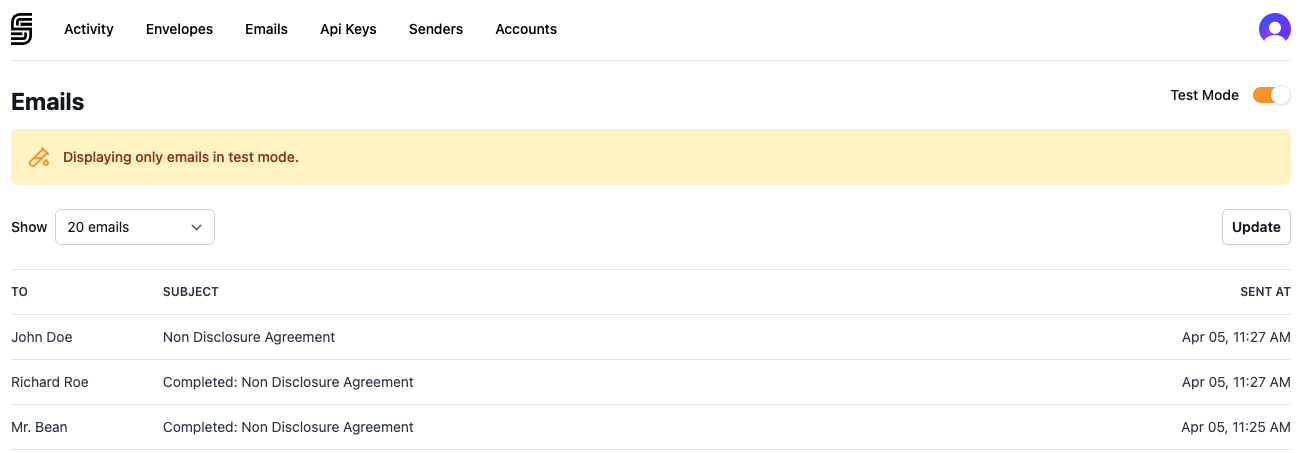
Test mode vs live mode
Toggle Test Mode in the top-right corner to switch between test and live emails.
Test mode emails are never sent to recipients. Instead, they appear in the Dashboard so you can preview the full email content, including ceremony links and access codes. This lets you test your integration end-to-end without sending real emails. Learn more about Test Mode.
Live mode emails are sent to real recipients. The Dashboard shows the same email list, but ceremony links and access codes are obfuscated to protect the integrity of the signing ceremony. Only the recipient should have access to these values.
Email details
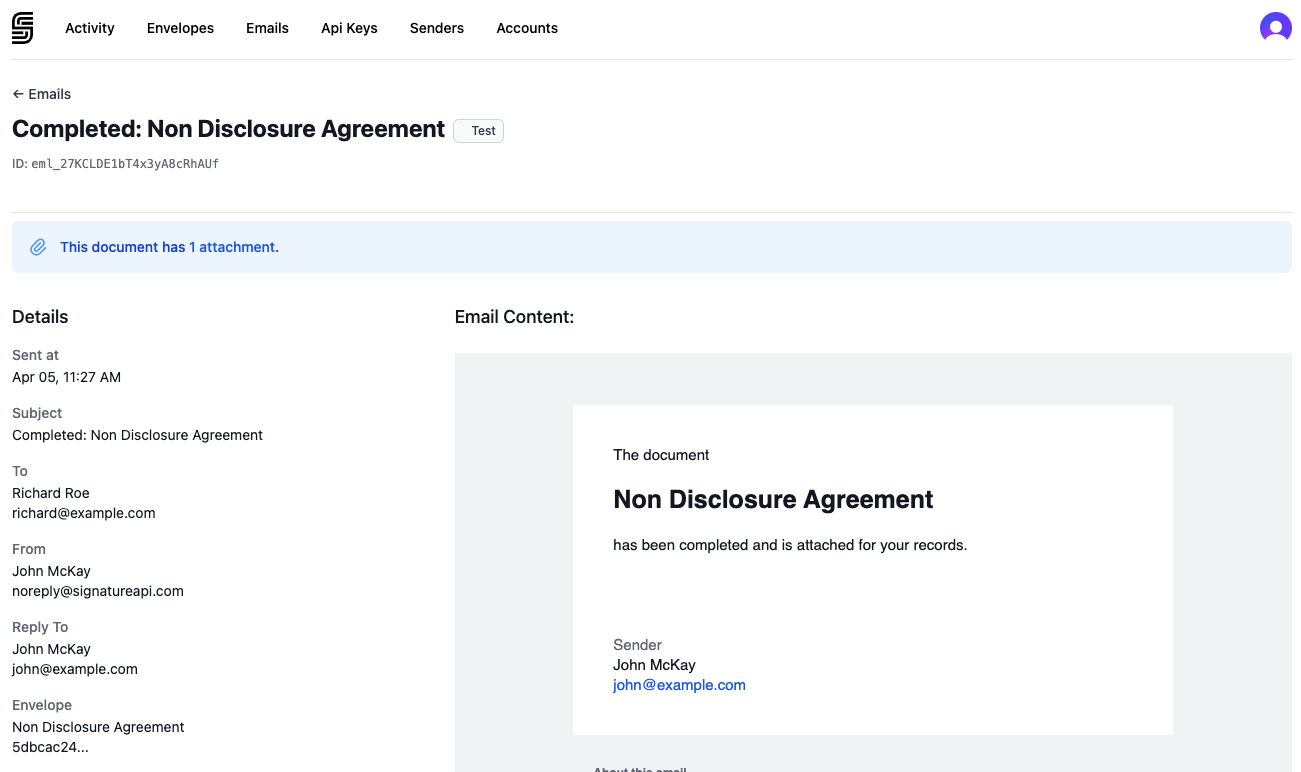
Click any email in the list to view its details. The detail page shows:
- Subject — the email subject line
- To — the recipient’s name and email address
- From — the sender name and
noreply@signatureapi.com - Reply To — the verified sender email address
- Envelope — the envelope title and ID
- Email Content — a full preview of the email as the recipient would see it
Attachments
Completion emails include an Attachments section where you can download the files that were sent with the email.
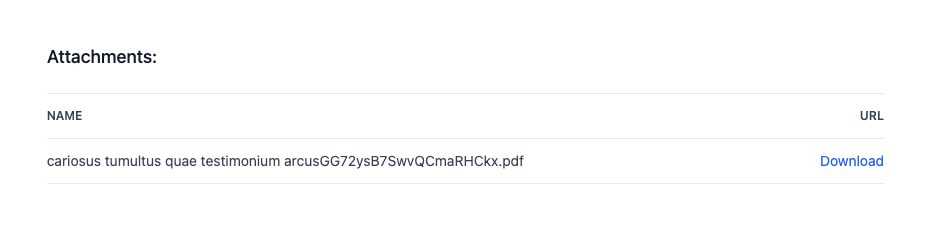
- Deliverables — the signed PDF documents generated after all recipients complete the envelope. Learn more about deliverables.
- Attestation certificates — included when the envelope uses a country-specific attestation standard such as Mexico NOM-151. The certificate file is attached alongside the deliverable.
Click Download next to any attachment to save it from the Dashboard.
Delivery report
Each email detail page includes a Delivery section with the SMTP report from the receiving mail server. Use this to debug delivery issues:
- Delivered — the email was accepted by the recipient’s mail server.
- Bounced — the email was rejected. The SMTP response explains the reason (e.g., mailbox full, address not found).
- Deferred — the email delivery was temporarily delayed. SignatureAPI retries automatically.
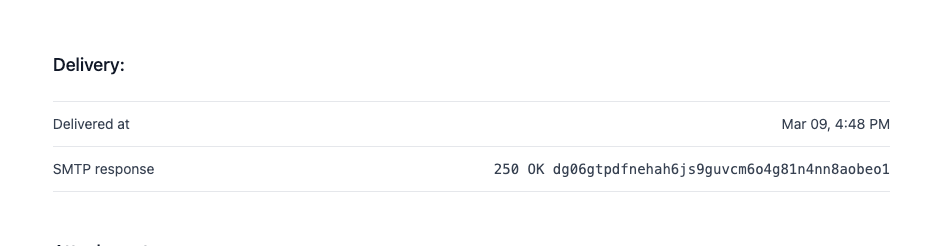
The SMTP report is especially useful when a recipient’s status changes to soft_bounced or hard_bounced. It shows the exact response from the remote mail server, helping you identify whether the issue is a full mailbox, an invalid address, or a server-side block.