

How-to guides
Notify Your Team of Bounced Emails in Power Automate
Build a Power Automate flow that posts a Slack message when a signing request email bounces, so your team can fix the address before signing stalls.
Overview
Sometimes a signing request email doesn’t reach the recipient, usually because the address has a typo or no longer exists. When that happens, the recipient never sees the document, and nobody notices until someone checks the envelope. In HR, that can hold up onboarding for days.
This guide builds a Power Automate flow that starts when a request email bounces and posts a message to a Slack channel, so your team can correct the address and get the envelope moving again.
Requirements
- Power Automate, with a connection to the SignatureAPI connector. See Authentication.
- Slack, with permission to create a channel and to connect Slack to Power Automate.
Creating the Envelope
This guide assumes you already have a Power Automate flow that sends envelopes using the Create an envelope action from the SignatureAPI connector.
You don’t need to change anything in how the envelope is created. The automation starts when the email to a recipient bounces.
Flow Overview
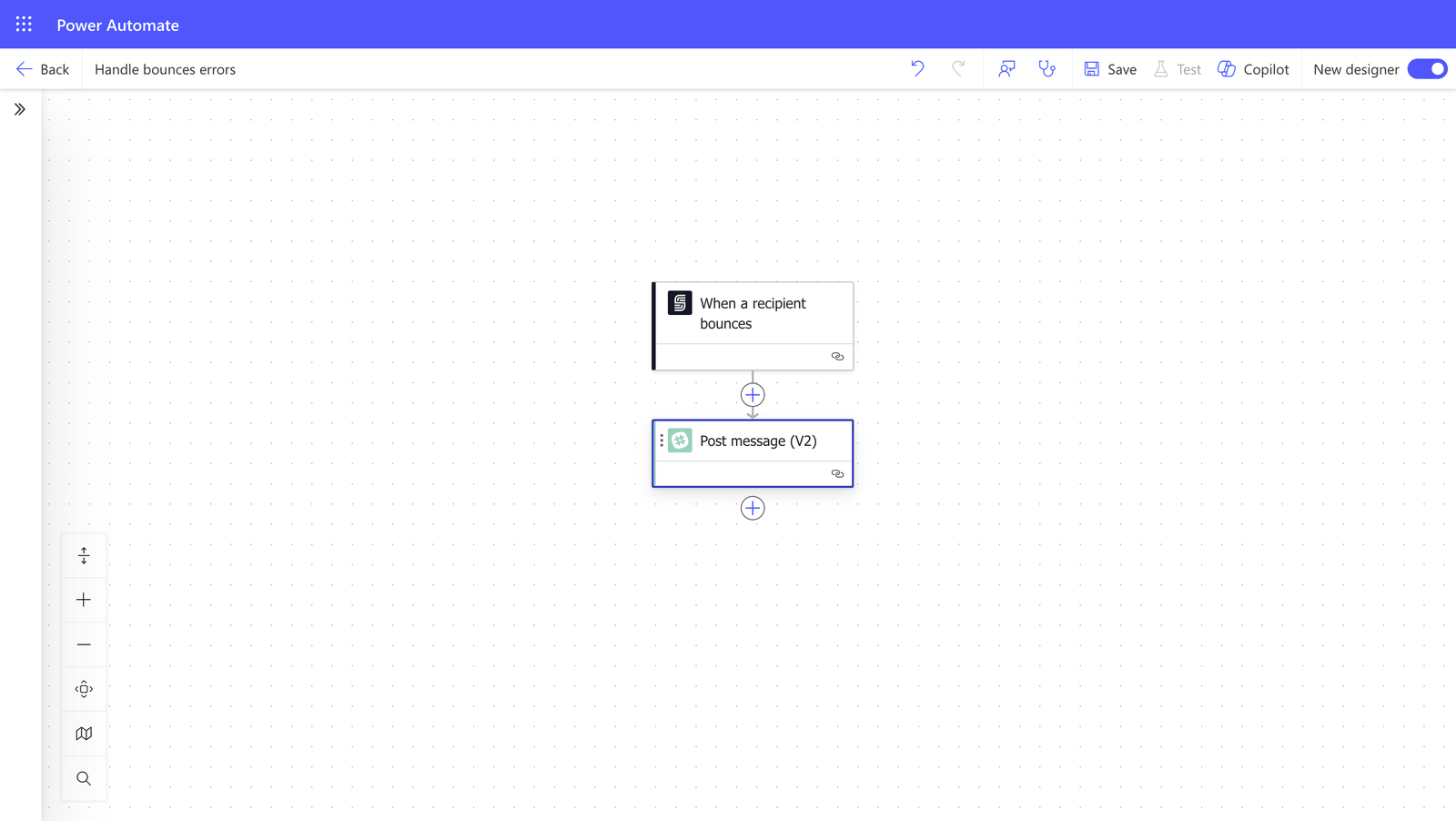
The flow has two steps:
- Trigger: When a recipient bounces starts the flow when a request email to a recipient can’t be delivered. It fires for both temporary (soft) and permanent (hard) bounces.
- Notify: the Slack Post message (V2) action posts the bounce details to a channel.
Post a Slack message when a request email bounces
2 steps in Power Automate, from the trigger down.
-
Trigger · SignatureAPI
When a recipient bounces
-
Action · Slack
Post message (V2)
- Channel Name
- Typed value
bounced-emails - Message Text
- Typed value
The recipient {Recipient ID} from the envelope {Envelope ID} bounced with the reason: {Detail}Recipient ID, Envelope ID and Detail are dynamic content from When a recipient bounces.
Create a Slack Channel
A dedicated channel keeps bounce alerts in one place. If you already have one, skip this step.
-
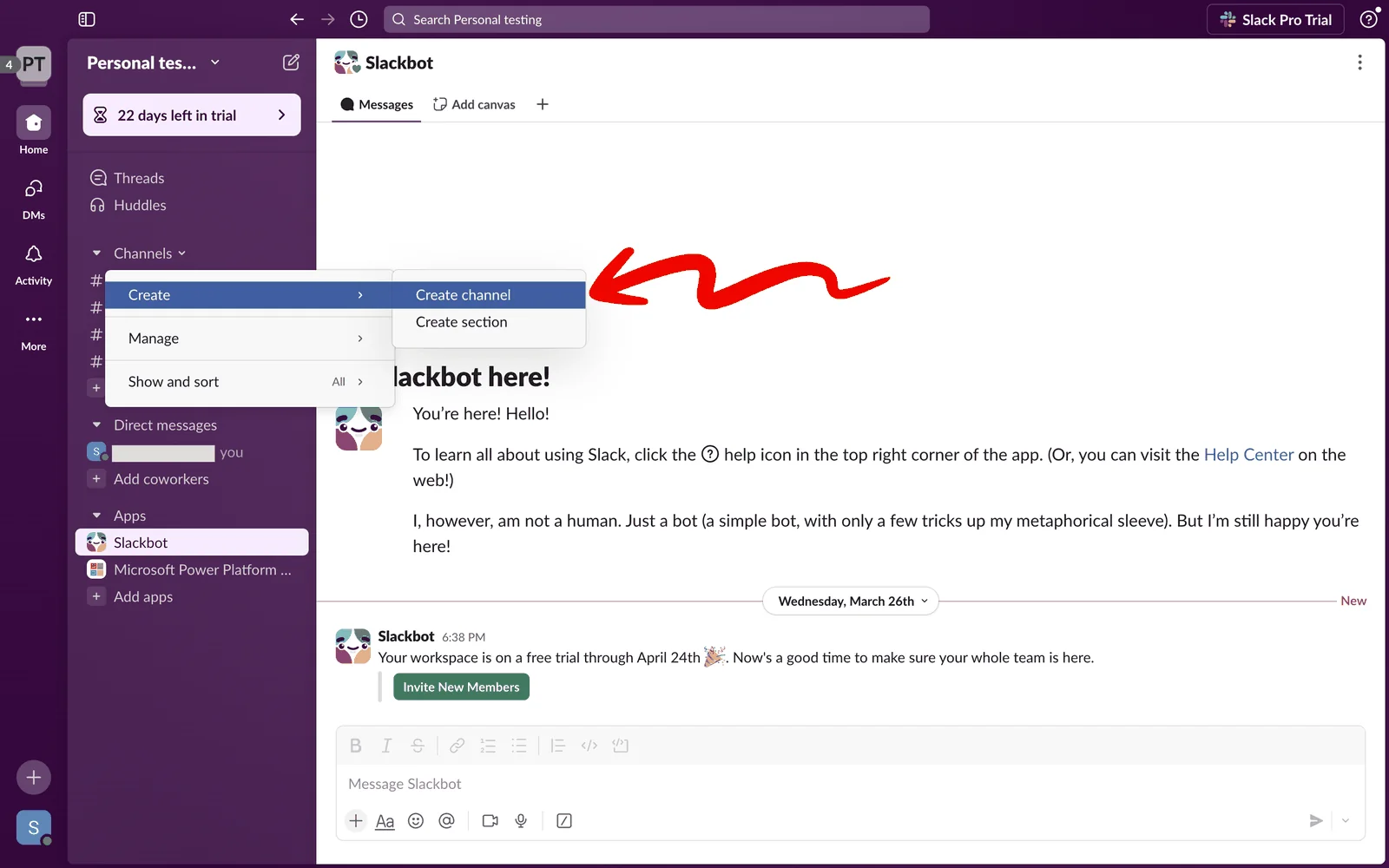
In Slack, select Create channel in the sidebar.
-
Give the channel a descriptive name, for example
bounced-emails, choose whether it is public or private, then select Create.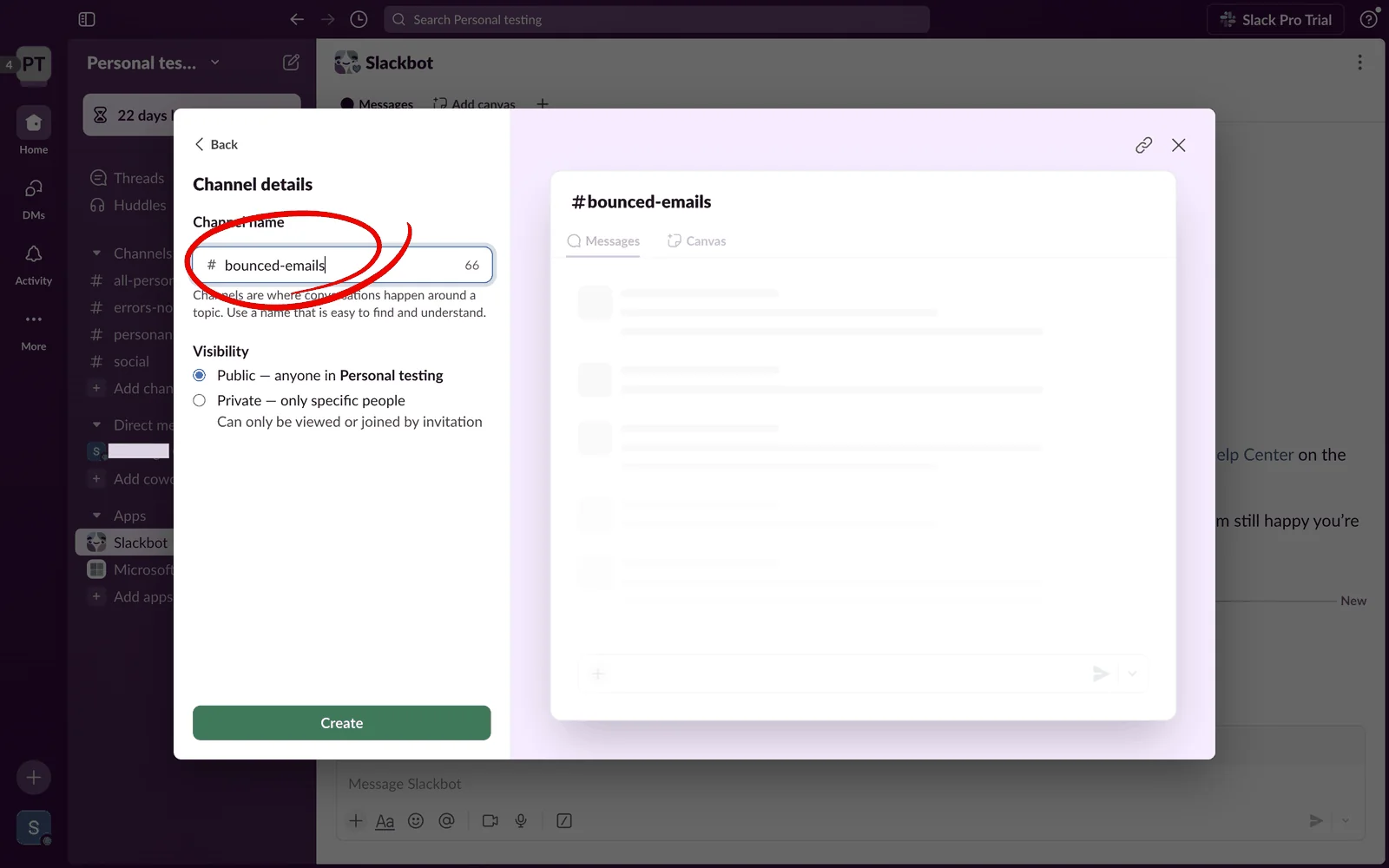
Trigger the Flow When an Email Bounces
Create a new automated flow that starts when a recipient’s email bounces.
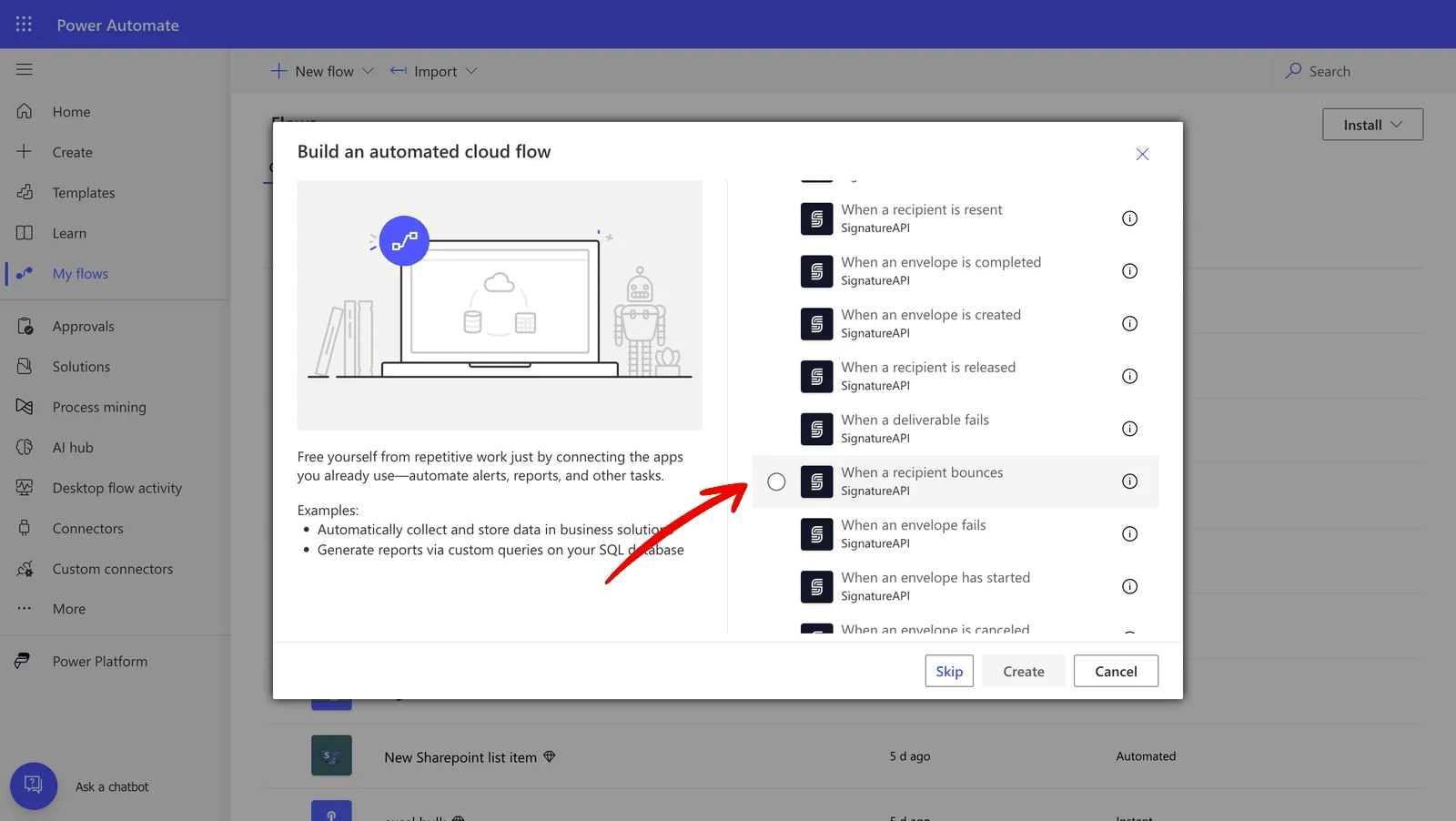
- Go to Power Automate, select Create, then Automated cloud flow.
- Name your flow and choose the trigger When a recipient bounces from the SignatureAPI connector. If this is your first time using the connector, Power Automate asks for your API key.
The trigger gives the next steps this dynamic content:
When a recipient bounces
Power Automate trigger
This event occurs when an email is undeliverable, either temporarily (soft-bounce) or permanently (hard-bounce).
| Field | Description |
|---|---|
Topics array | Use to classify envelopes and filter webhook notifications. |
Dynamic content it outputs (8)
Event ID string | The ID of the event. |
|---|---|
Event Timestamp string (date-time) | The date and time of the event, in ISO 8601 format. |
Event Type string | The type of the event. |
Envelope ID string | The ID of the envelope this event refers to. |
Recipient ID string | The ID of the recipient this event refers to. |
Recipient Type string | The type of recipient this event refers to. |
Recipient Key string | The key of recipient this event refers to. |
Detail string | Information about the bounce. |
Send a Slack Notification
Next, add a step that posts to Slack when the trigger runs.
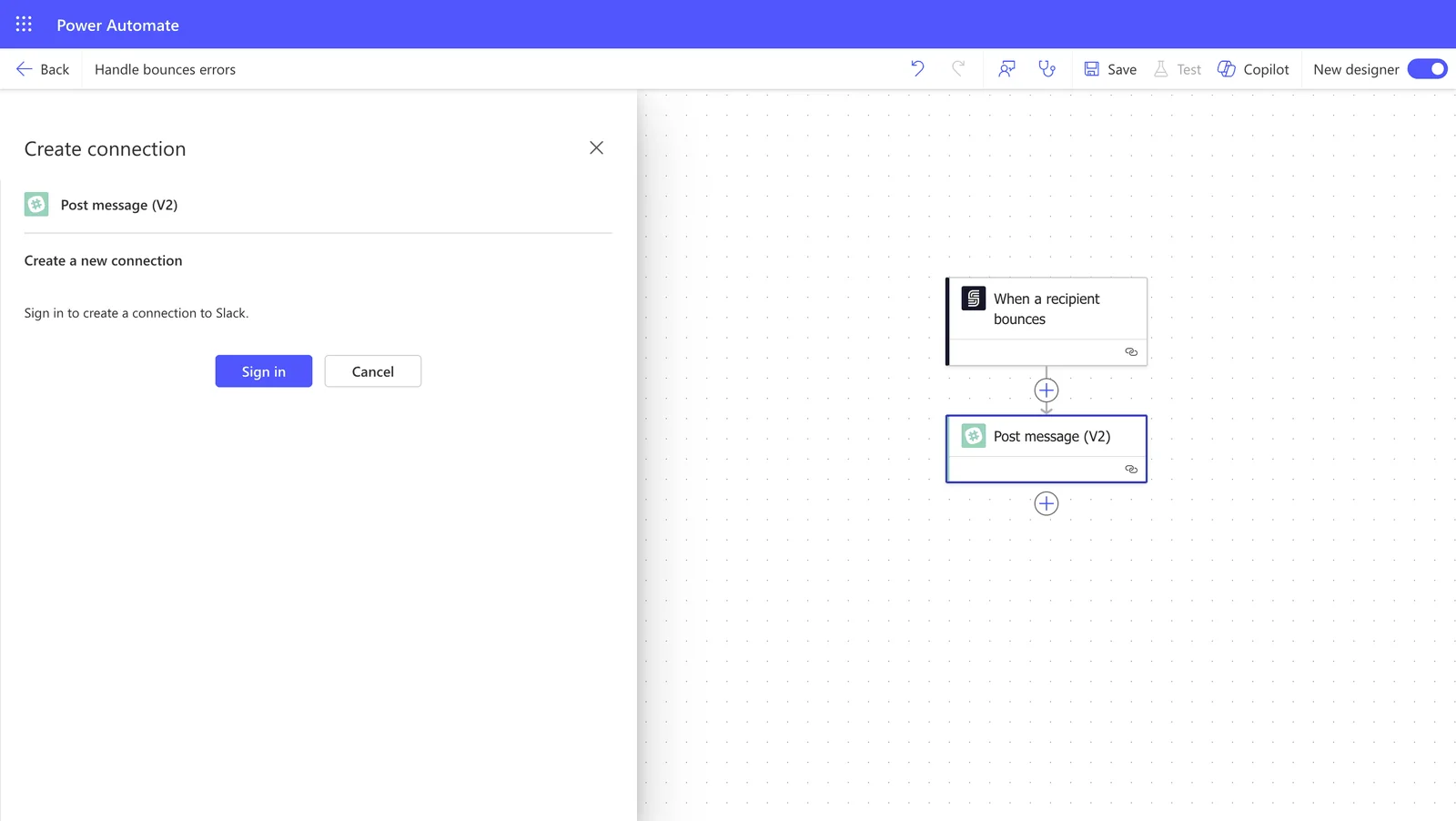
- Add the Post message action from the Slack connector.
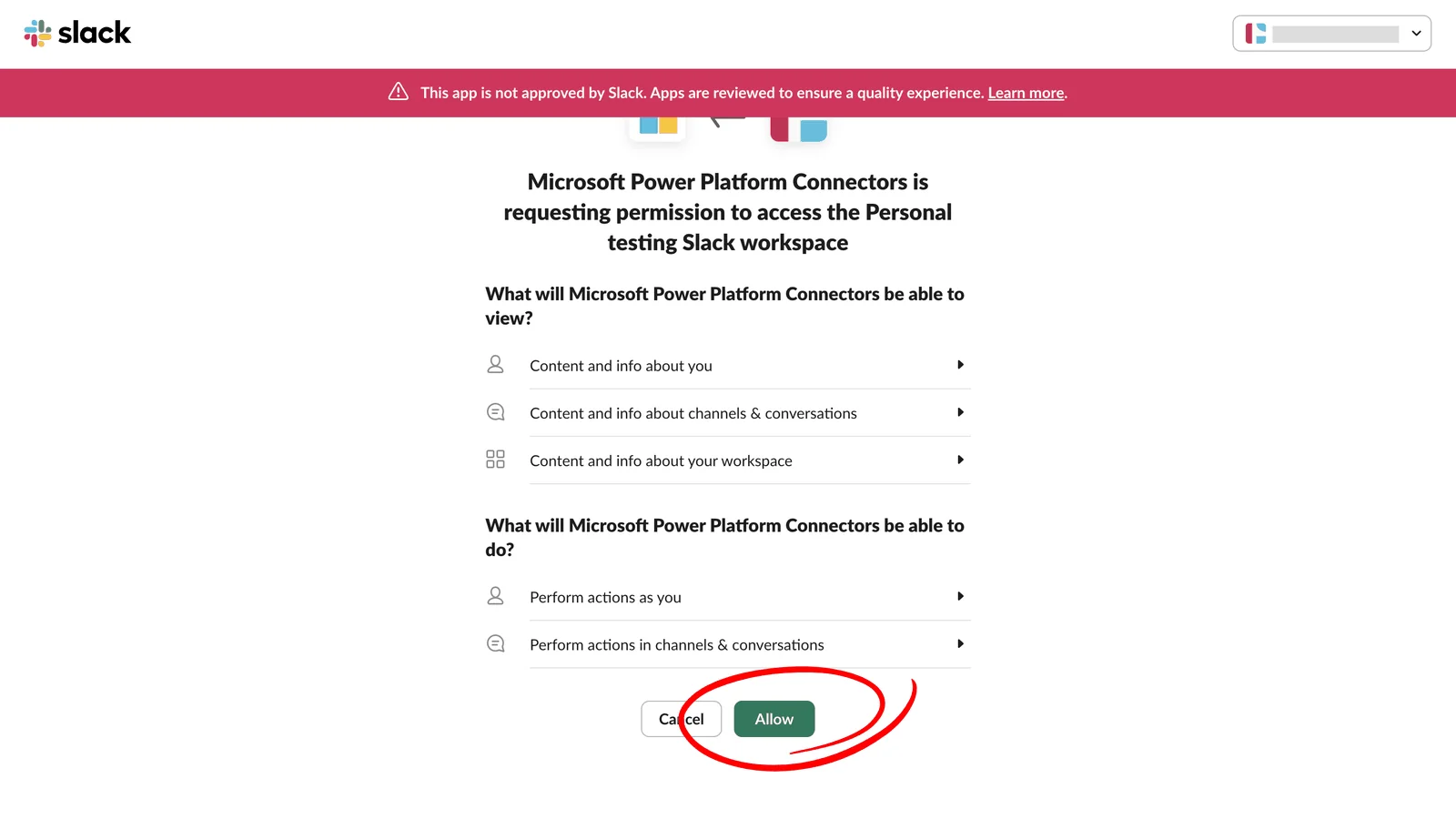
- Sign in with your Slack account if Power Automate asks you to.
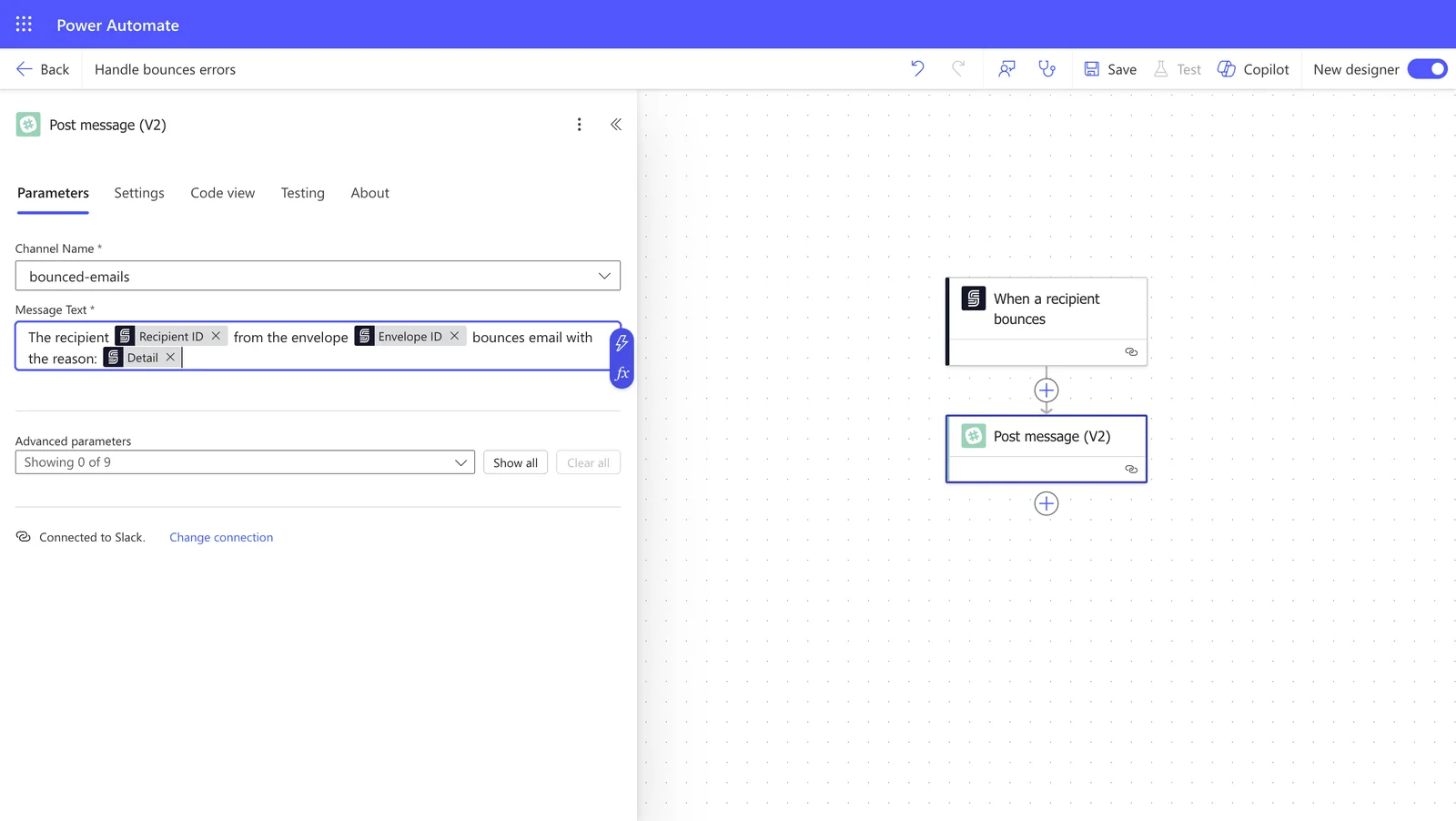
- In Channel Name, choose the channel you created, for example
bounced-emails. - In Message Text, write the message with dynamic content from the trigger. For example:
The recipient {Recipient ID} from the envelope {Envelope ID} bounced with the reason: {Detail}. Detail describes the bounce.
The trigger doesn’t include the recipient’s name or email address. To put them in the message, add a Get a recipient action before Post message, set its Recipient ID to the trigger’s Recipient ID, and use its Recipient Name and Recipient Email in the message.
To build part of the message with an expression, such as a formatted date, try it here against a sample bounce event first:
Power Automate expression tester
Runs in your browser against sample data; nothing is sent. It supports 18 common functions, listed below.
eb4cf433-a8af-4161-b37b-7ef57d423e56
Worked examples
- Envelope ID
triggerBody()?['data']?['envelope_id']eb4cf433-a8af-4161-b37b-7ef57d423e56 - Event sentence
concat('Event: ', triggerBody()?['type'], ' for envelope ', triggerBody()?['data']?['envelope_id'])Event: recipient.bounced for envelope eb4cf433-a8af-4161-b37b-7ef57d423e56 - First SharePoint item
first(body('Get_items')?['value'])?['ID']1 - Completion date
formatDateTime(triggerBody()?['timestamp'], 'yyyy-MM-dd')2026-11-02
Supported functions (18)
triggerBody(): The trigger's body output.triggerOutputs(): The trigger's outputs:headersandbody.body('Action_name'): An action's body output.outputs('Action_name'): An action's outputs:headersandbody.first(collection): The first item of an array or the first character of a string.last(collection): The last item of an array or the last character of a string.length(collection): The number of items in an array or characters in a string.concat(text1, text2, ...): Joins two or more strings.toLower(text): The string in lowercase.toUpper(text): The string in uppercase.coalesce(value1, value2, ...): The first value that is not null.empty(value): True when a string, array or object is empty, or the value is null.not(boolean): The opposite of a Boolean value.and(boolean1, boolean2, ...): True when every Boolean value is true.or(boolean1, boolean2, ...): True when at least one Boolean value is true.if(boolean, valueIfTrue, valueIfFalse): One of two values, chosen by a Boolean value.formatDateTime(timestamp, 'format'): A timestamp in another format, in UTC: standard formats such aso,sandd, or custom ones such asyyyy-MM-dd HH:mm. Without a format:o.utcNow('format'): The current time in UTC, in formatounless you give a format.
Also supported: string, number, true, false and null literals, and property access with ['name'], ?['name'] and .name. Semantics follow Microsoft's expression functions reference.
Result
Now your flow will:
- Detect when a request email to a recipient bounces.
- Post a Slack message with the bounce details.
Your team can follow up right away instead of finding the problem days later.
Test Your Automation
Envelopes created with a test API key don’t send email, so they never bounce. To see a real bounce, use a connection with a live API key:
- Save the flow and make sure it is turned on.
- Create an envelope for a recipient whose address doesn’t exist, for example an unused address on your own domain.
- Wait for the bounce, then check the Slack channel for the message.
- Cancel the test envelope.
If no message arrives, check the flow’s run history in Power Automate:
- The flow didn’t run: make sure the flow is on, and that the address really bounced. A trigger with a value in Topics runs only for envelopes with a matching topic.
- The SignatureAPI step failed: open the connection and check its API key. If you regenerated the key, update the connection.
- The Slack step failed: check that the channel still exists and that the Slack connection is still authorized, under Data > Connections in Power Automate.
Variations
- Microsoft Teams instead of Slack: replace Post message with the Teams Post message in a chat or channel action. The trigger stays the same.
- Several channels: add one Post message action per channel, or add a condition that picks the channel from the envelope’s details.
- Other events: replace the trigger with any other SignatureAPI trigger, for example When a recipient is rejected.
Keep Learning
- Learn about the recipient lifecycle
- See the reference for the When a recipient bounces trigger
- Explore other available triggers