

How-to guides
Save Signed Documents
Build a Power Automate flow that saves every signed document to a SharePoint folder and emails it to your team as soon as the envelope is completed.
Overview
In SignatureAPI, the signed documents of an envelope are called a deliverable. A deliverable is generated automatically once all recipients have completed an envelope. You can see an example here.
You can download deliverables as PDF files. In many cases, you’ll want to save them to a specific folder, such as SharePoint or OneDrive, for compliance, auditing or record-keeping, and tell the people who need them.
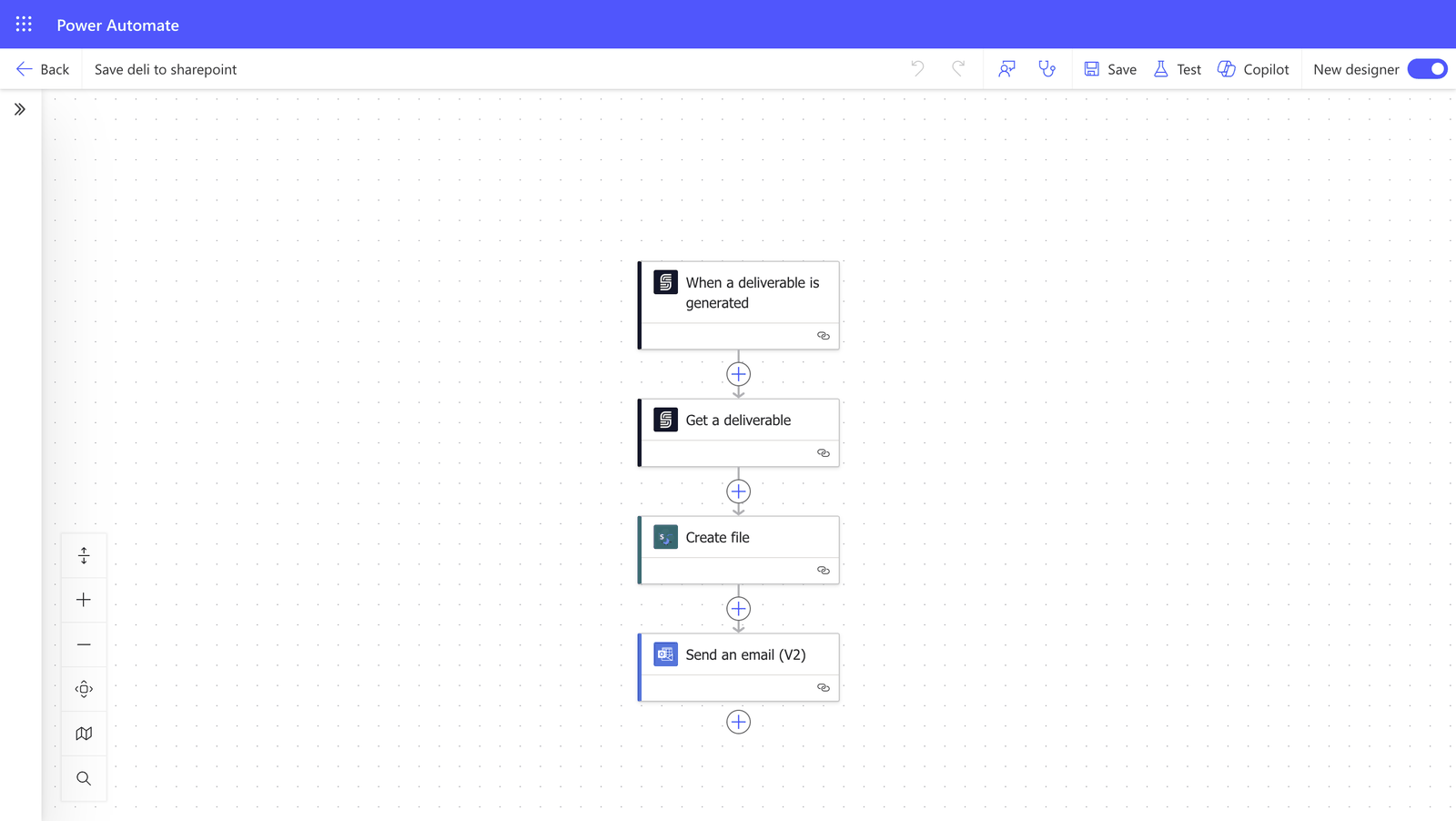
This guide shows how to use Microsoft Power Automate and SignatureAPI to:
- Trigger a flow when a deliverable is generated.
- Save the signed PDF to SharePoint.
- Send a notification email with the file attached.
This example uses SharePoint Online. The same steps work with OneDrive or any other storage service that has a Power Automate connector with a create-file action.
Requirements
- Power Automate, with a connection to the SignatureAPI connector. See Authentication.
- SharePoint Online, with write access to the folder where the documents go.
- Outlook (Office 365 Outlook connector), to send the notification.
Creating the Envelope
This guide assumes you already have a flow that sends documents for signature using the Create an envelope action from the SignatureAPI connector.
No changes are needed in the envelope setup. The steps below focus on what happens after the envelope is completed.
Flow Overview
Save each signed document to SharePoint and email it
4 steps in Power Automate, from the trigger down.
-
Trigger · SignatureAPI
When a deliverable is generated
-
Action · SignatureAPI
Get a deliverable
- Deliverable ID
- Dynamic content
Deliverable IDDynamic content from When a deliverable is generated.
-
Action · SharePoint
Create file
- Site Address
- Typed value
Your SharePoint site - Folder Path
- Typed value
/Shared Documents/Signed - File Name
- Typed value
{Deliverable Id}.pdfDeliverable Id from Get a deliverable. Any name works if it ends in .pdf. - File Content
- Dynamic content
File ContentDynamic content from Get a deliverable.
-
Action · Office 365 Outlook
Send an email (V2)
- To
- Typed value
hr@acme.example - Subject
- Typed value
Signed document saved - Attachments Name
- Typed value
{Deliverable Id}.pdfDeliverable Id from Get a deliverable. Any name works if it ends in .pdf. - Attachments Content
- Dynamic content
File ContentDynamic content from Get a deliverable.
Trigger the Flow When a Deliverable Is Generated
First, create a flow that starts when a deliverable is ready.
- Go to Power Automate and choose Automated cloud flow.
- Name your flow (for example, “Save signed documents to SharePoint”) and select the trigger When a deliverable is generated from the SignatureAPI connector.
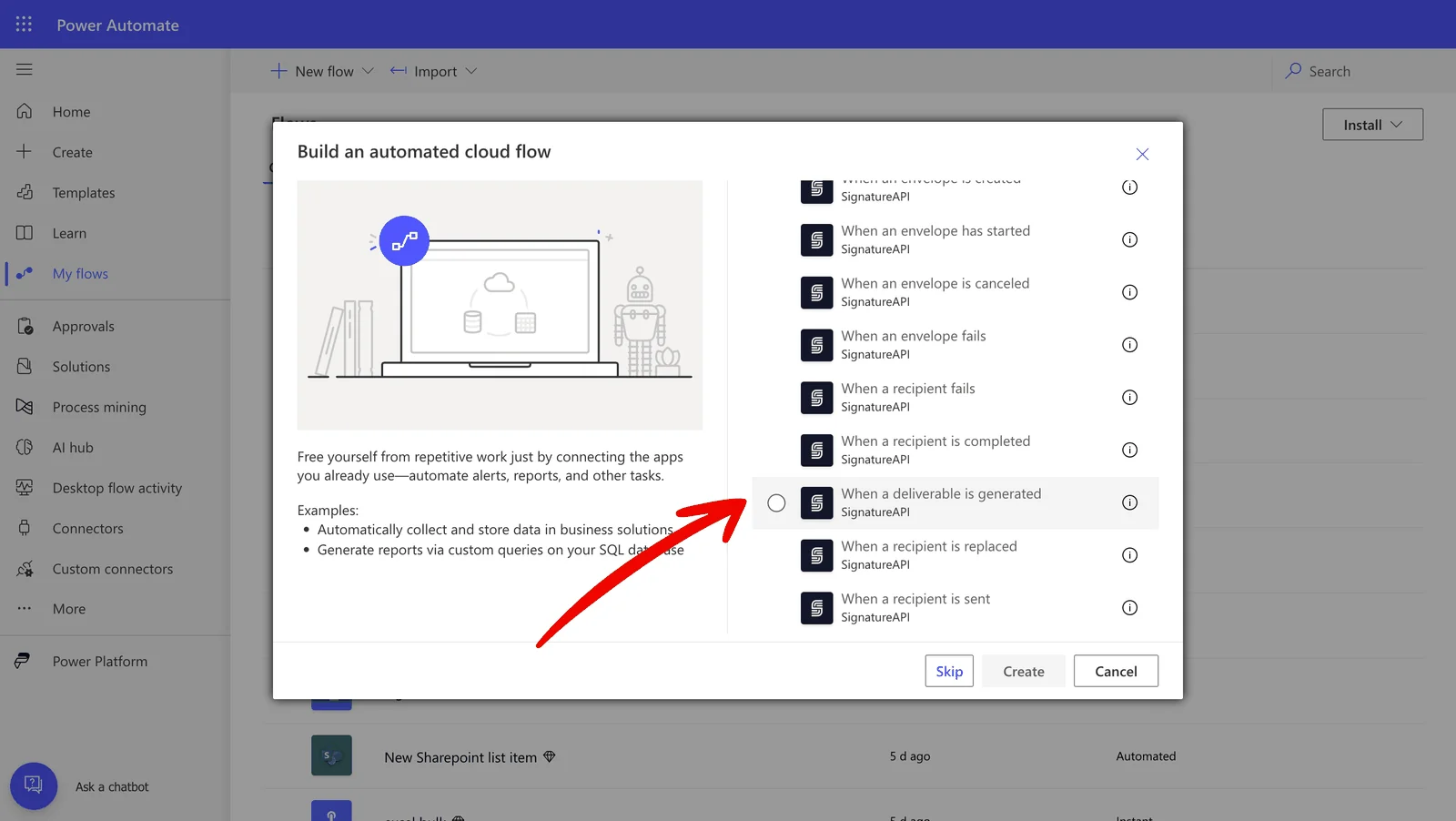
This trigger runs when the envelope is completed and its deliverable is ready to download.
Save the Deliverable to SharePoint
Next, add steps to retrieve the file and store it in SharePoint.
- Add the Get a deliverable action.
- In Deliverable ID, select the trigger’s Deliverable ID from the dynamic content.
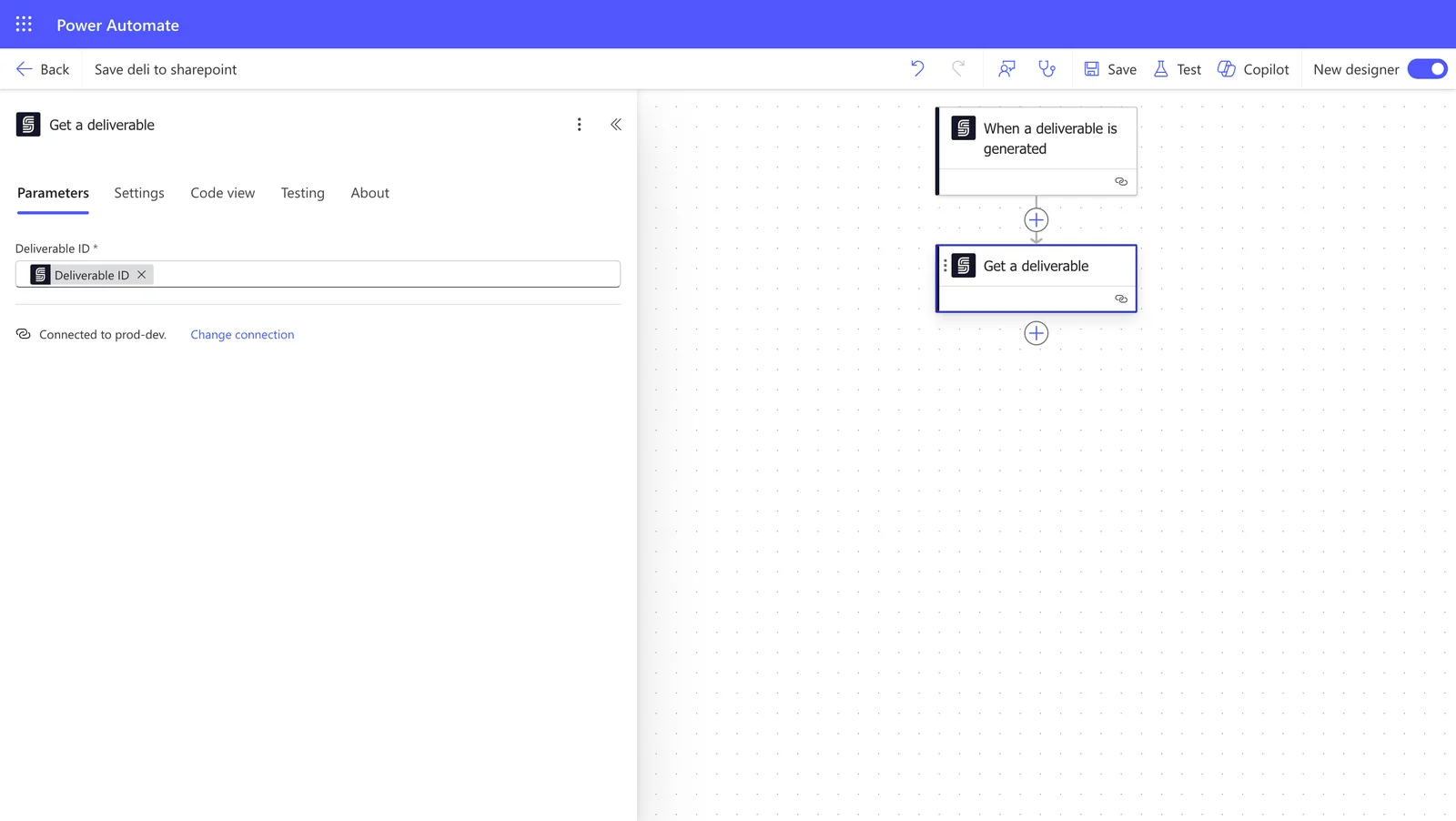
Get a deliverable outputs the signed PDF as File Content:
Get a deliverable
Power Automate action
Retrieves a deliverable using its ID. Use it to download a signed copy of the envelope.
| Field | Description |
|---|---|
Deliverable ID string (required) | The ID of the deliverable. |
Dynamic content it outputs (4)
Deliverable Id string | The ID of the deliverable. |
|---|---|
Deliverable Type string | The type of the deliverable. |
Deliverable Status string | The status of the deliverable. |
File Content string (byte) | The file content of the deliverable. Use it to save a signed copy of the envelope. |
- Add the Create file action from the SharePoint connector.
- Set the Site Address and Folder Path.
- Set the File Name, ending in
.pdf. The example uses the Deliverable Id from Get a deliverable. - Set File Content to the File Content from Get a deliverable.
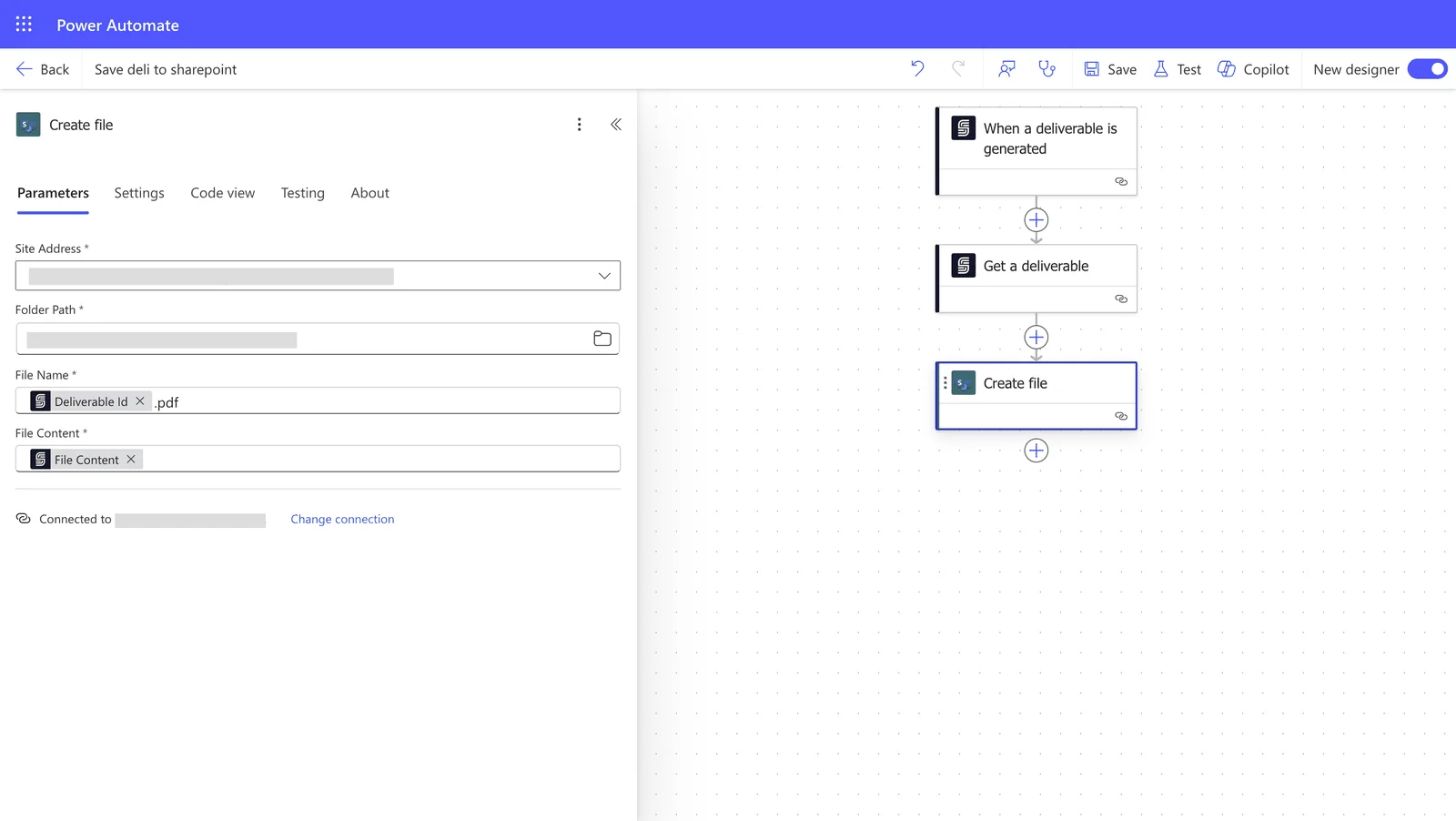
This step saves the signed document in your SharePoint folder.
Send a Notification Email
Now send an email with the signed PDF attached.
- Add the Send an email (V2) action from the Office 365 Outlook connector.
- In To, enter the address of the team that should get the document. A distribution list reaches several people at once.
- Set a Subject and Body, for example the document name and the SharePoint folder.
- Under Attachments, set the name (ending in
.pdf) and set the content to the File Content from Get a deliverable.
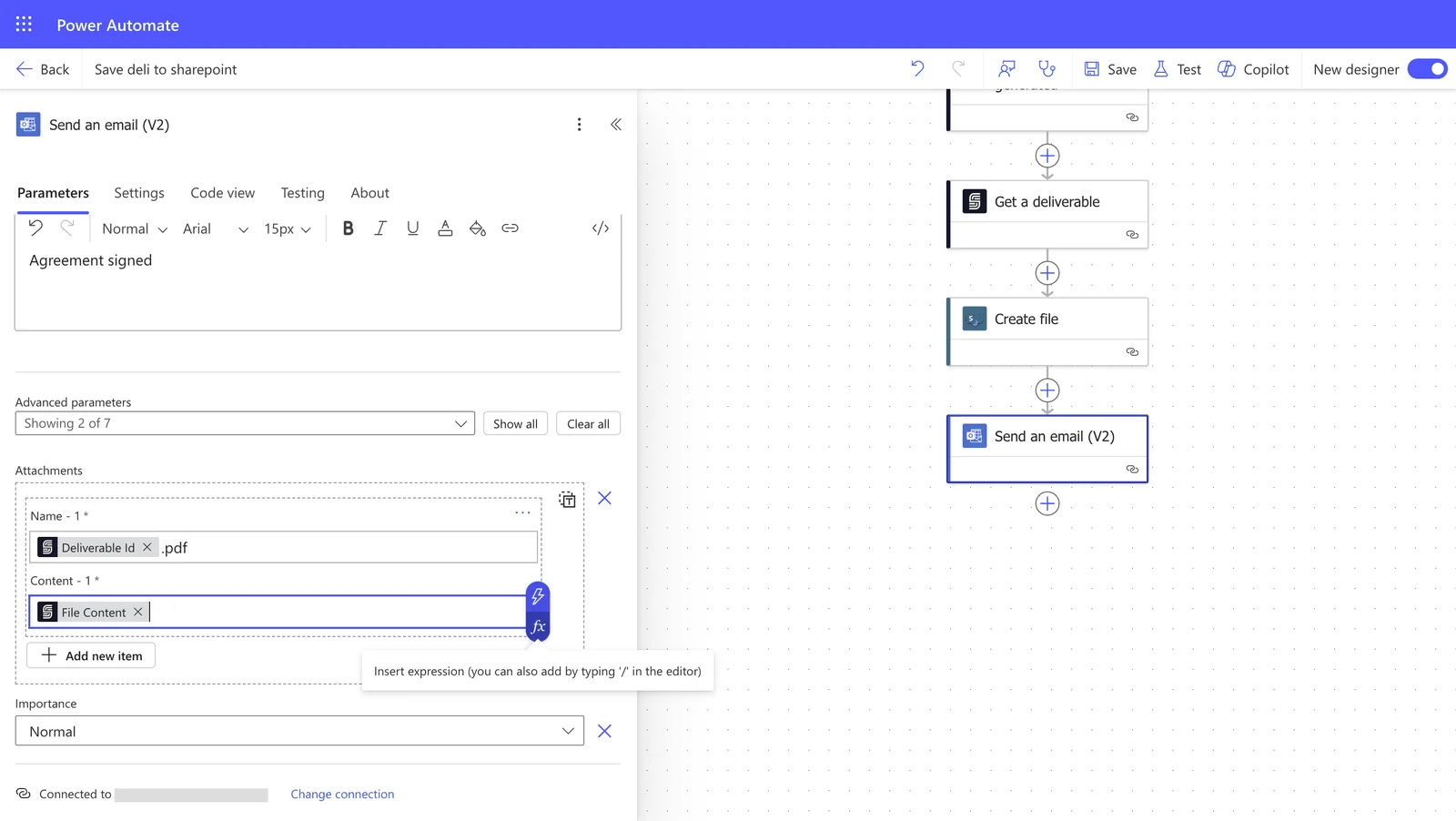
This lets the team know the signed document has been saved and is ready for review.
Result
This flow will:
- Trigger when a deliverable is generated.
- Save the signed PDF to SharePoint.
- Send a notification email with the file attached.
Signed documents end up in the right folder every time, without anyone downloading and filing them by hand.
Test Your Automation
Test the full workflow:
- Save your Power Automate flow and make sure it is turned on.
- Create a new envelope and complete it.
- Check that the file is in the SharePoint folder and that the email arrives with the PDF attached.
If something is missing, open the flow’s run history in Power Automate and select the failed step:
- Create file failed: check that the SharePoint connection has write access to the site and folder.
- No email arrived: check the To address and the recipient’s junk folder, and that the Outlook connection is still signed in.
- The SignatureAPI step failed: open the connection and check its API key. If you regenerated the key, update the connection.
To save to OneDrive instead, replace the SharePoint Create file action with the OneDrive for Business Create file action. The rest of the flow stays the same.
Keep Learning
- Learn more about the When a deliverable is generated trigger
- Read the guide on deliverables
- See an example of a deliverable